PoliceBook - Administration
An administration guide for the application PoliceBook.
E.g., How to create users, how to audit, how to install PoliceBook.
- Updating registration details
- Zero config / Auto Discover
- User administation
- Policebook - Installation
- Audit Log
Updating registration details
Login as an administrator user
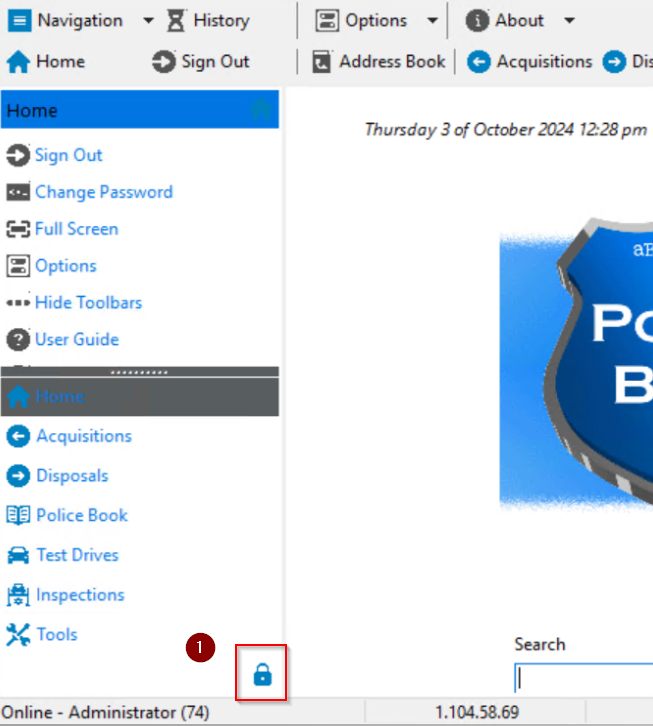
Select the system menu (or padlock)
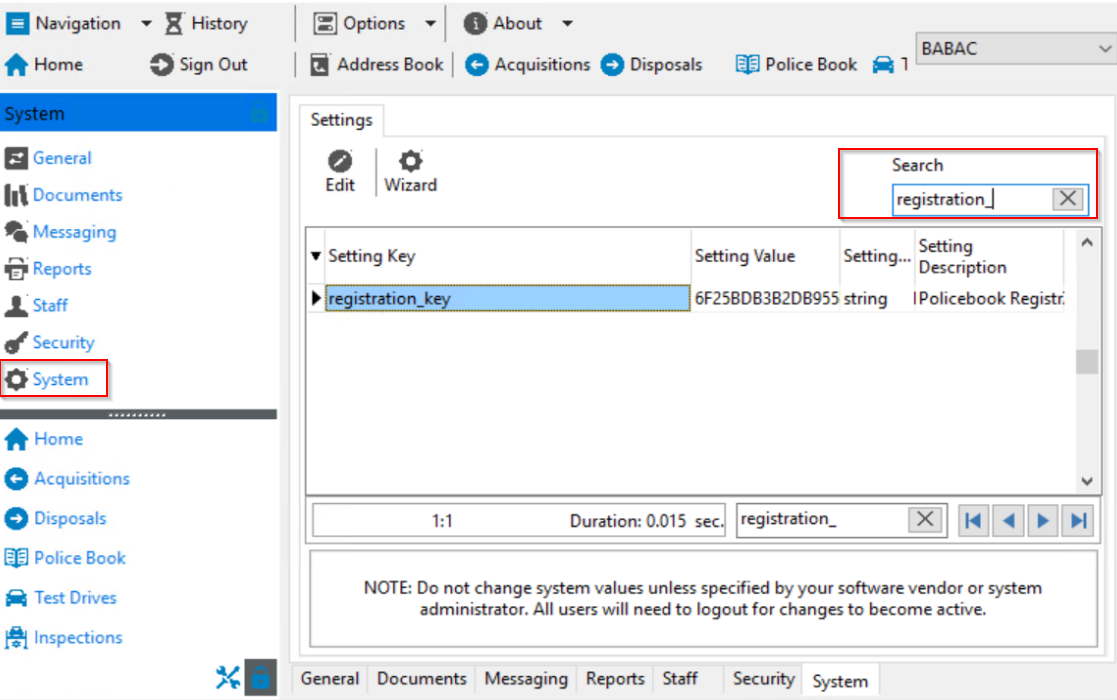
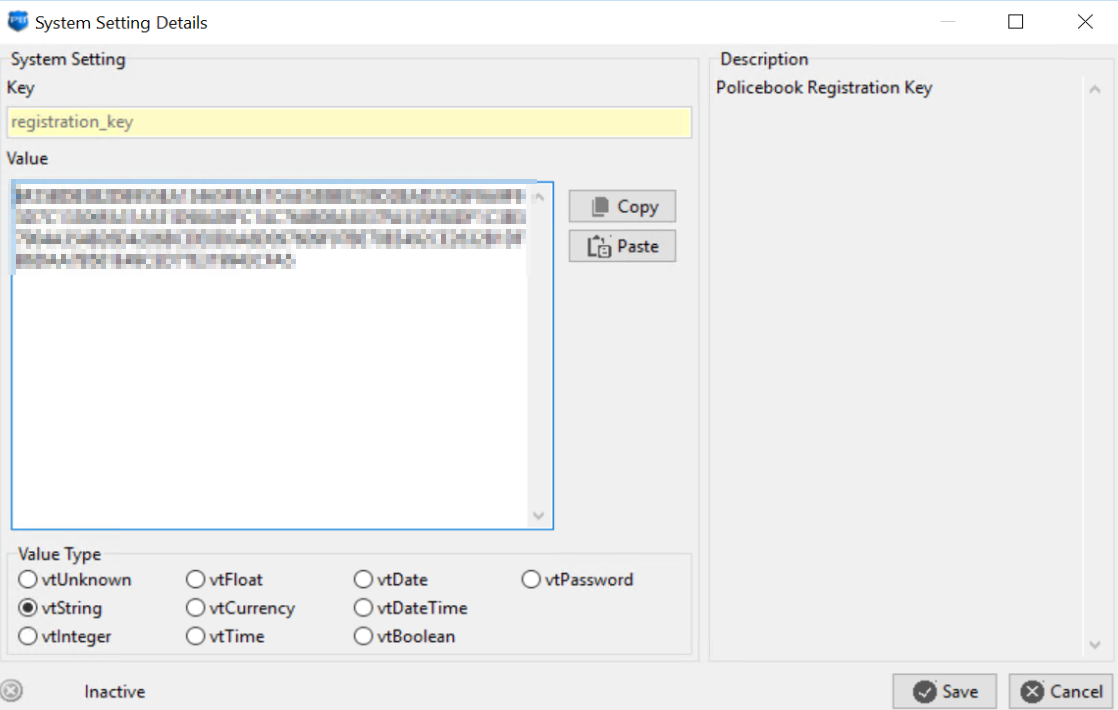
Enter the new key and press save
Zero config / Auto Discover
See this guide for detailed setup of Zero config
User administation
Select administration area
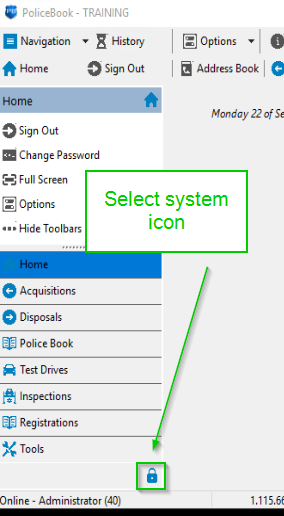
Local user accounts
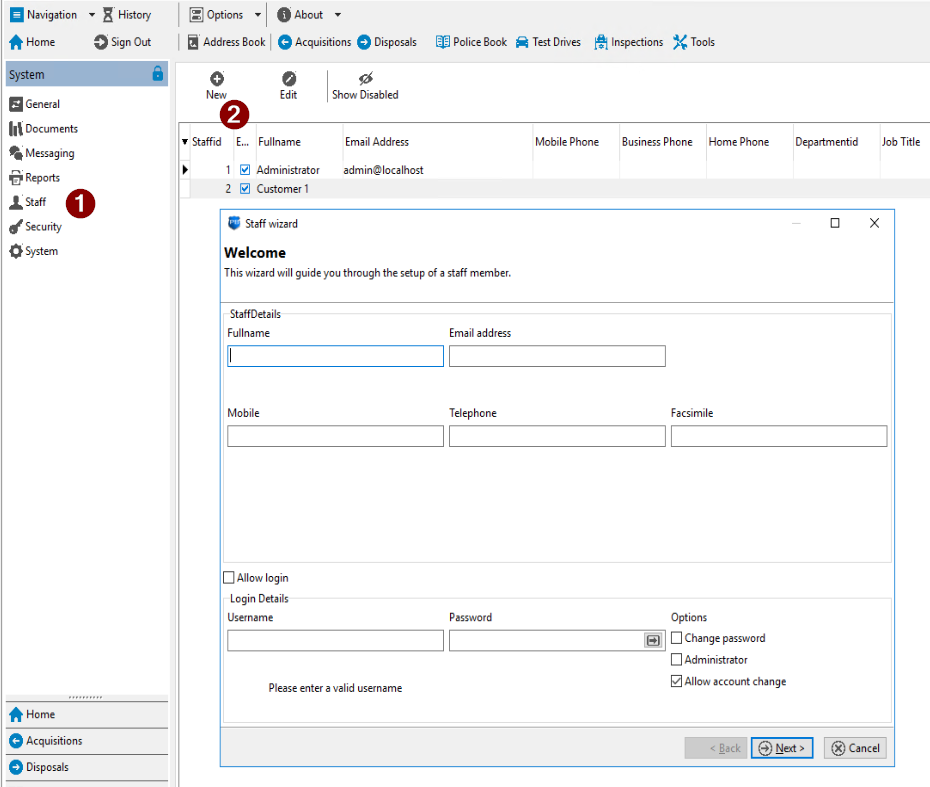
Creating a new staff member
Start the new staff wizard, enter required information if the user is required to login check the "Allow login" box
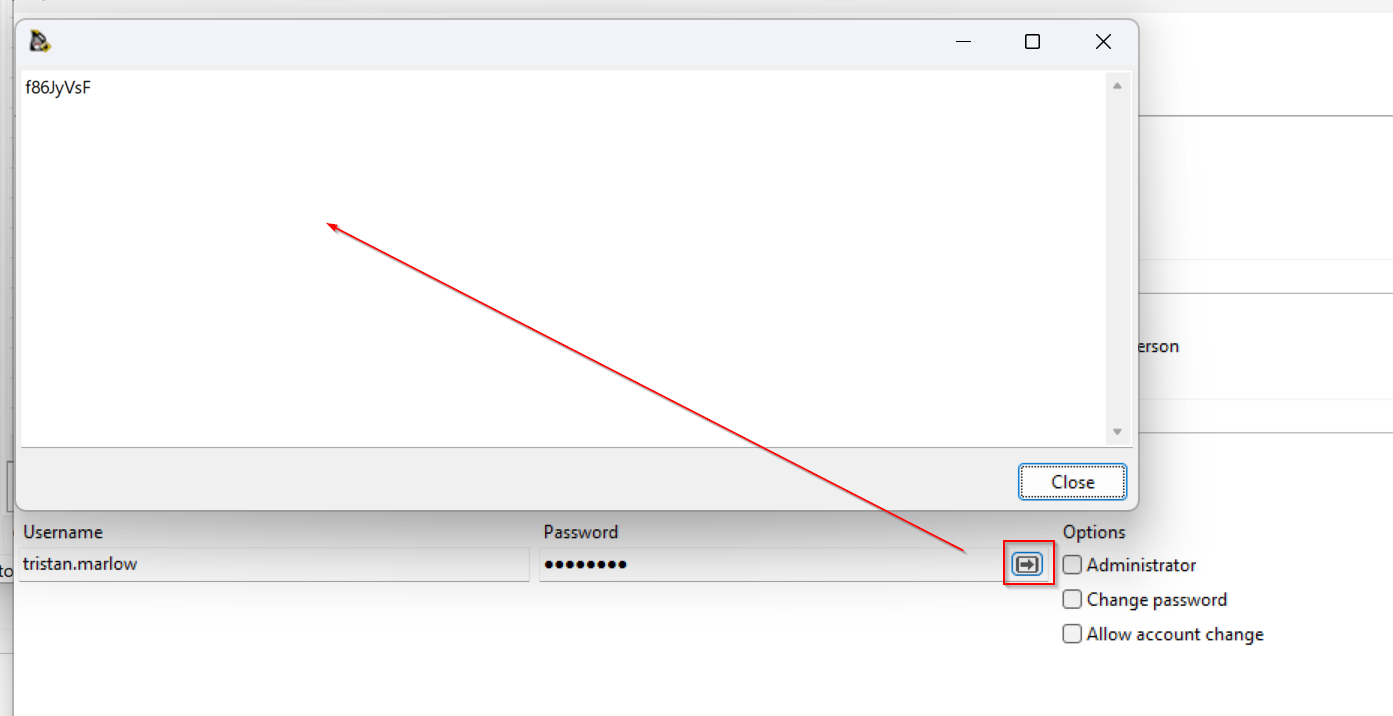
You can use the generate password button to create a password
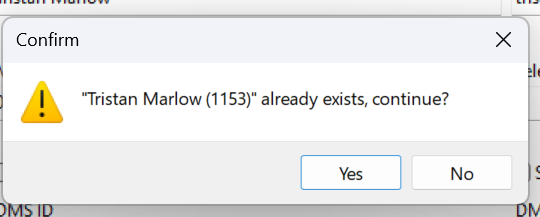
Service scheduler will check for a similar name to ensure that the user
Edit existing staff member
To find a staff member that has had their account disabled. Select the following button
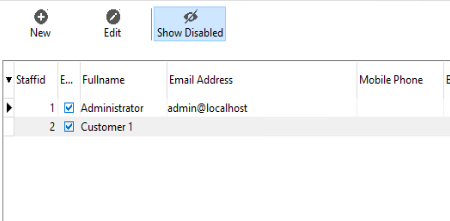
Adjust user details as required
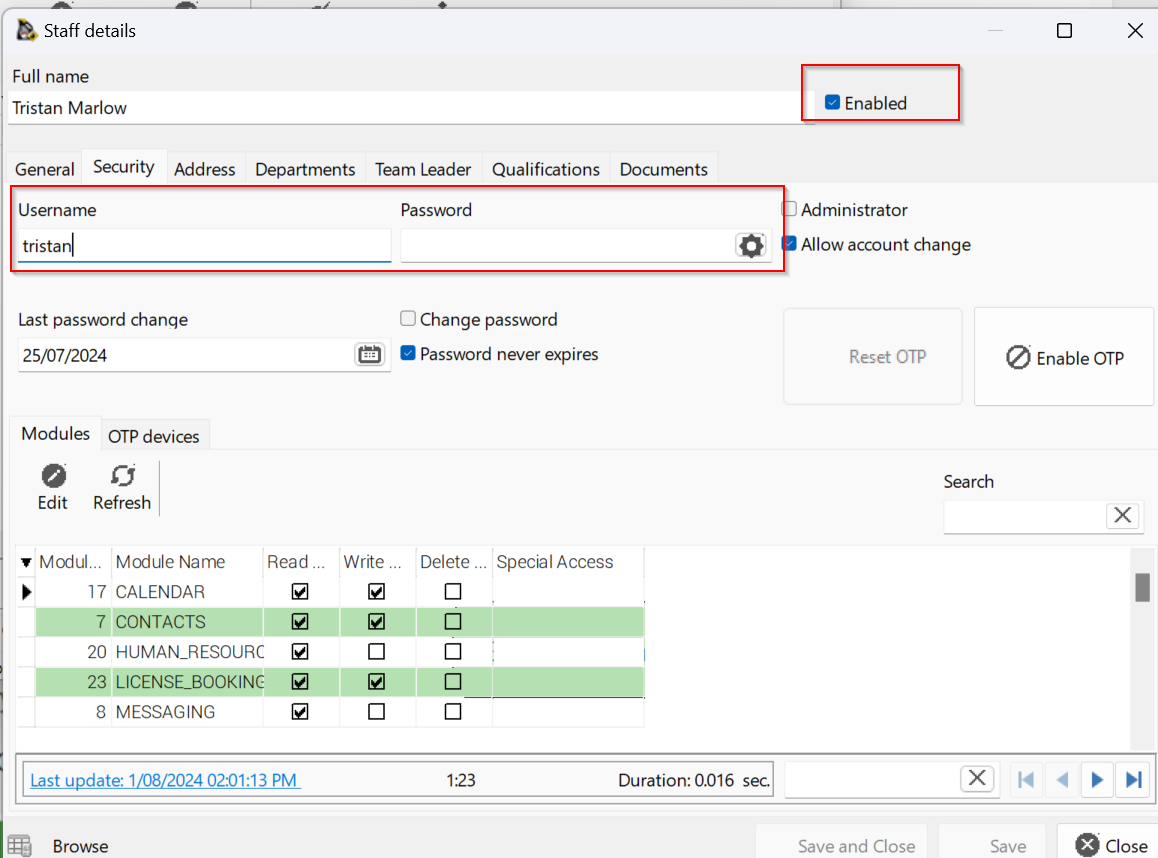
LDAP Integration (Active Directory)
To enable LDAP integration, navigate to system settings and search for "ldap"
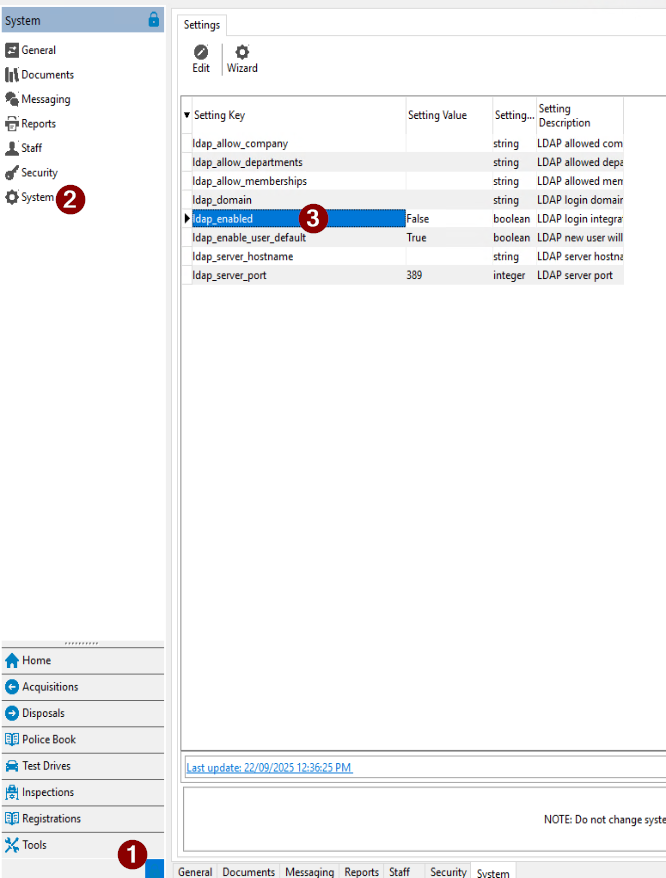
| ldap_allow_company | This will look at the users "company" and if matches will allow login/ Blank will allow any company value. |
| ldap_allow_departments | This will look at group the user is a member of and if they match a group name |
| ldap_domain | Your LDAP / Active Directory domain name |
| ldap_server_hostname | The domain will be used to find a server via DNS but a specific server can be specified. |
| ldap_server_port | Port to communicate for LDAP requests |
Departments / Active Directory groups are the recommended method of controller
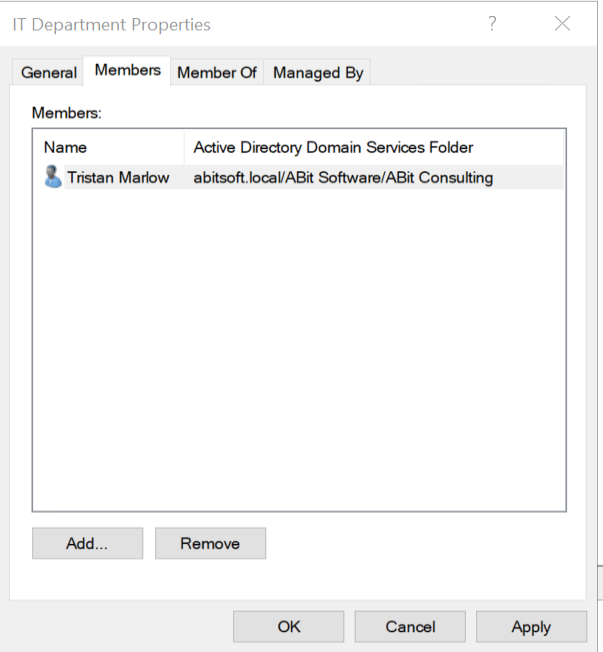
As the password is controlled by LDAP, attempting to change the password will result in "User passwords are managed by LDAP integration"

Policebook - Installation
The User setup does not require Administrative rights to install, but means only the user that installed the program can use it. There is a System setup available, but requires Administrative rights to install. You will be able to find these options on your PoliceBook software home page. The User setup is the recommended version.
1. Click "Next" if you want to continue with the set-up, else click "Cancel", and the PoliceBook installer will close.

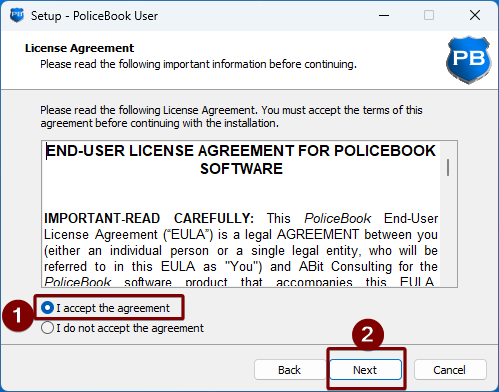
2. Please read the license agreement before continuing, then click Next. You will not be able to continue without accepting the EULA.
3. Please read the release notes if you are reinstalling the program, then click Next.
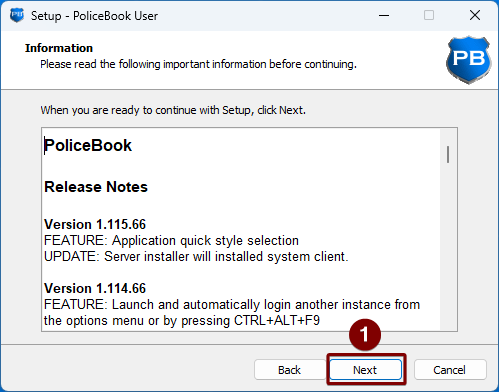
4. Please select a location to where you want PoliceBook to be installed to on your computer, or you can leave as default. Once finished, click Next.
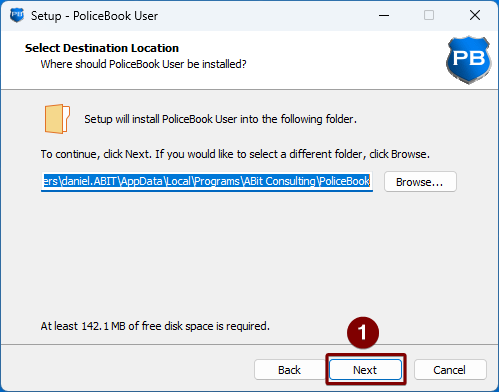
5. Please choose a Start Menu shortcut folder, or if you would like for the program shortcut in the Start Menu to be under "P", click "Don't create a Start Menu folder", then click Next.
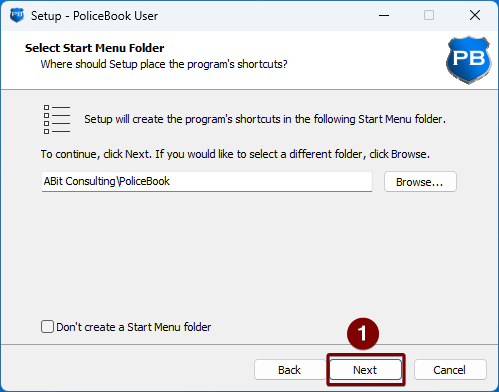
6. If you would like the installer to not create a Desktop shortcut, please uncheck the box and click Next.
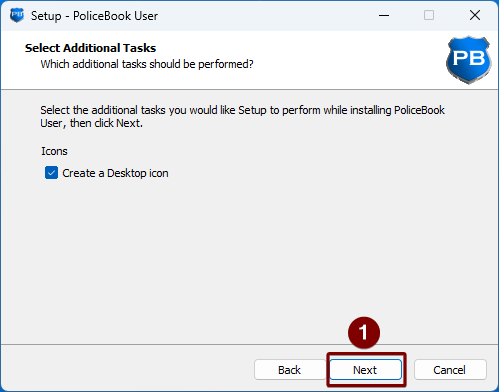
7. Once you are happy with the installation, click Install.
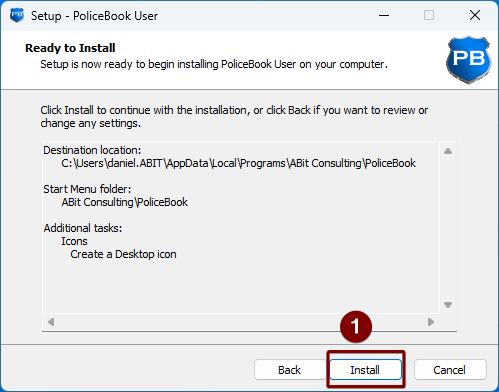
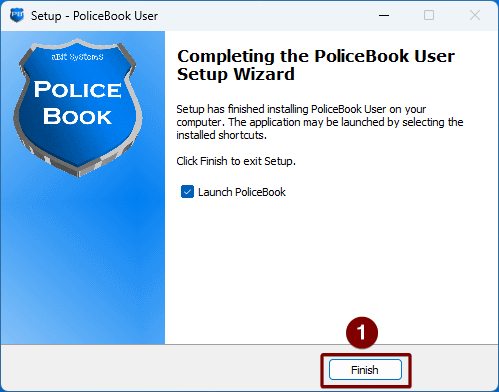
8. Once the installation is finished, you are now ready to open PoliceBook. Click Finish.
Audit Log
There is an Audit log to see who edited what at what time. You can access this Audit log from System > Security > Audit Log.
