Service Scheduler - Basics
- Client installation
- Mobile client installation
- Application server settings
- Starting and Logging into Service Scheduler
- Loan car diary
- Workshop planner
- User interface
Client installation
The User setup does not require Administrative rights to install, but means only the user that installed the program can use it. There is a System setup available, but requires Administrative rights to install. You will be able to find these options on your Service Scheduler software home page. The User setup is the recommended version.
Download client
The client is available on the from the running server instance of service scheduler. (eg http://servsched:8090) The default Server Port: 8090 however this could be changed during installation.

| Client - User Setup | This will install the application in the user current profile. Admin rights are not require |
| Client - User Setup (System Wide) | This will install a stub in the program files folder and a desktop icon for all users. This will then install the application in users profile. This is helpful for workstations used by multiple users |
| Client - System Setup | This will install in Program files for all users. Requires admin rights. |
Launch client download
Once the download is complete click open file
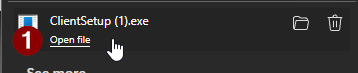
Some browsers may prompt about trusting the file. Select the 3 dots "..." and press keep
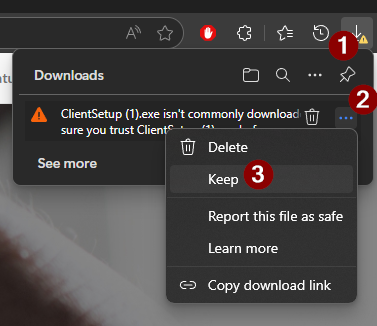 |
|
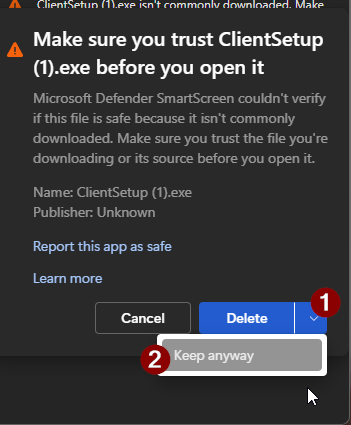
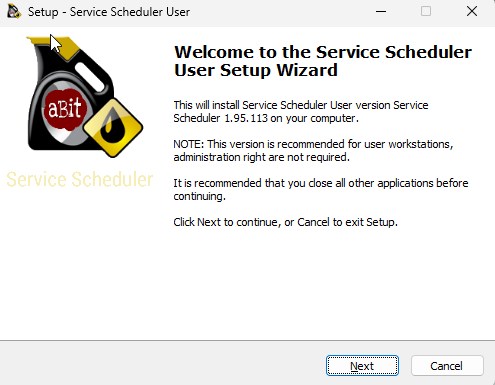
Client Installation
Press Next until installation is finished, not options need to be changed.
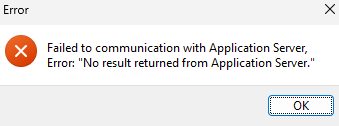
Client configuration
For many sites service scheduler will work immediately after installation however if a connection error occurs the server address will need to be entered manually.
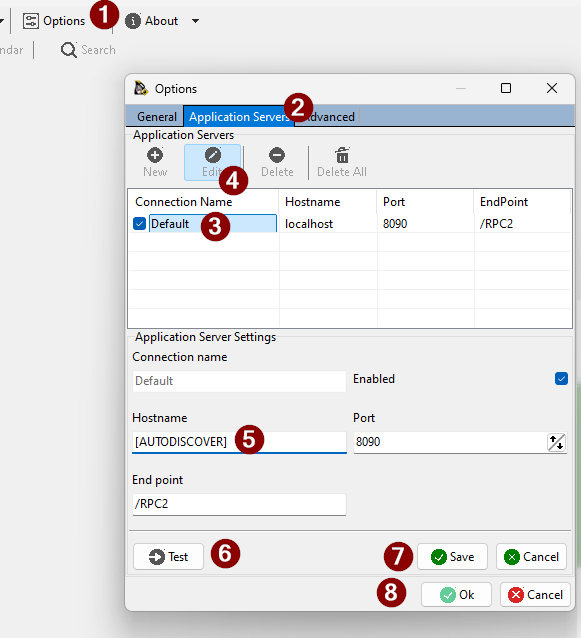
Select Options -> Application Server and adjust the [AUTODISCOVER] value to the server name or ip address of the Service Scheduler server.
If a URL was provided for installation (eg http://172.16.1.10:8090) the address would 172.16.1.10.
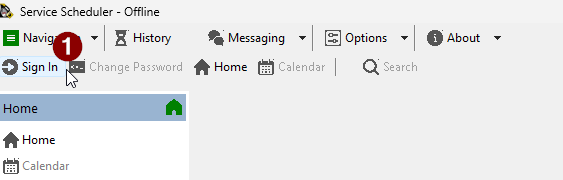
Press Sign in again
Mobile client installation
Service Scheduler mobile requires that Web Services are installed and accessible from customer WAN
- [Android] (https://play.google.com/store/apps/details?id=au.com.abitsoftware.servsched)
- [iOS] (https://itunes.apple.com/us/app/service-scheduler/id898640065?ls=1&mt=8)
Application server settings
The default setting for the application server in Service Scheduler is [AUTODISCOVER] this will attempt to find the server user DNS SRV records.
If DNS is not configured or testing connectivity issues, the hostname can be adjusted.
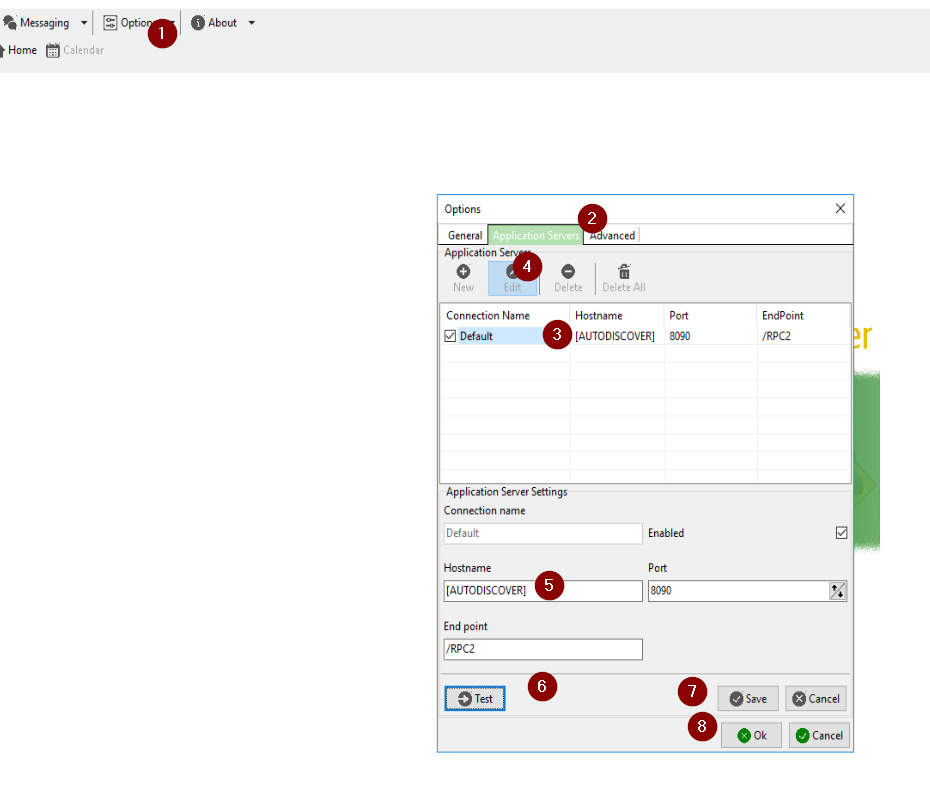
NOTE: DNS is the recommended method with the next preference being a hostname (eg servsched) this makes future upgrades or migrations to new servers easier.
Starting and Logging into Service Scheduler
Starting Service Scheduler
To start Service Scheduler, you have the following options:
1. Use the provided desktop shortcut on your computer to start Service Scheduler.
2. Go into the Start Menu and find the Service Scheduler program under the "S" section.
3. Search "Service Scheduler" in the Search Box.
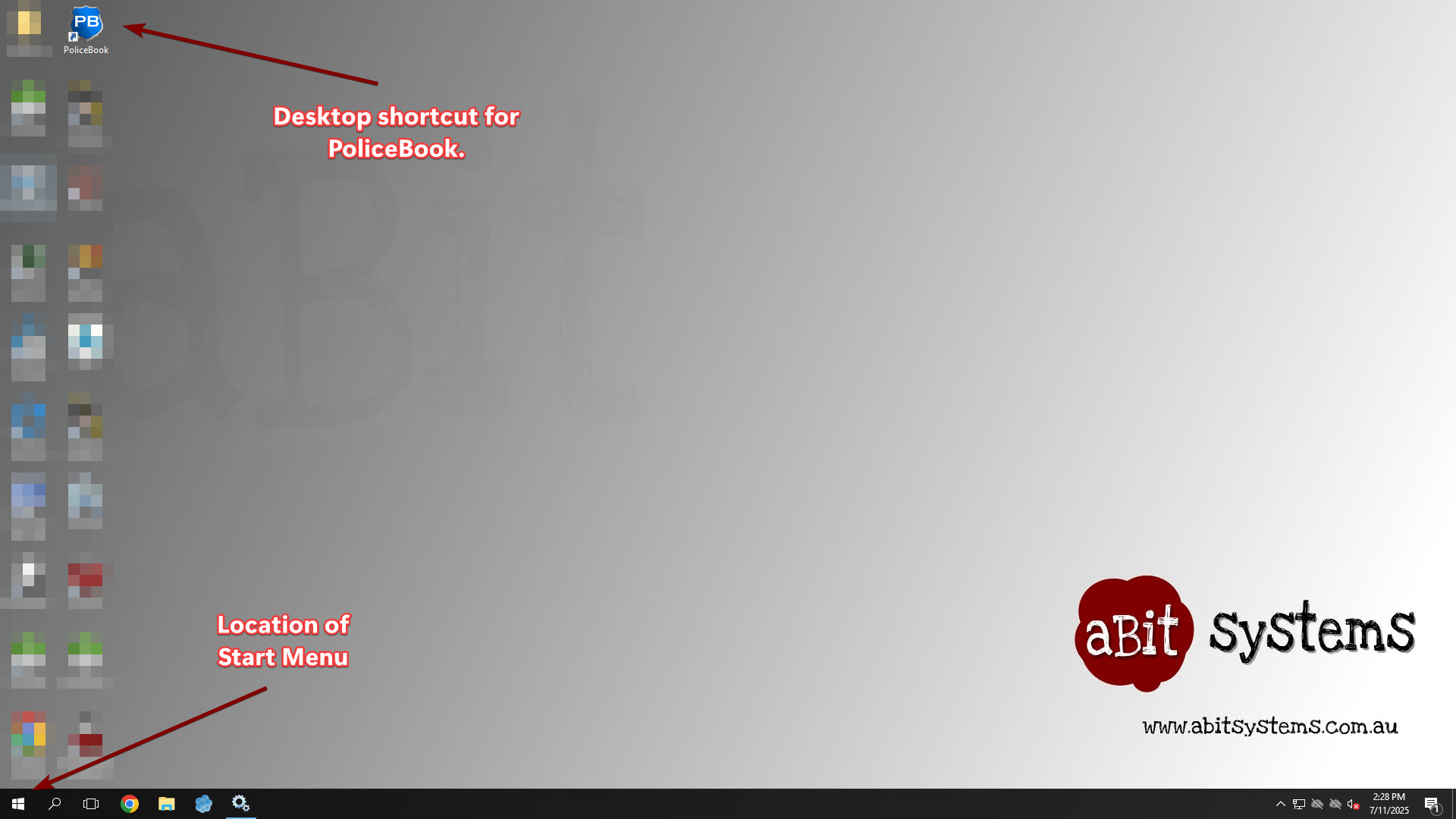
Logging into Service Scheduler
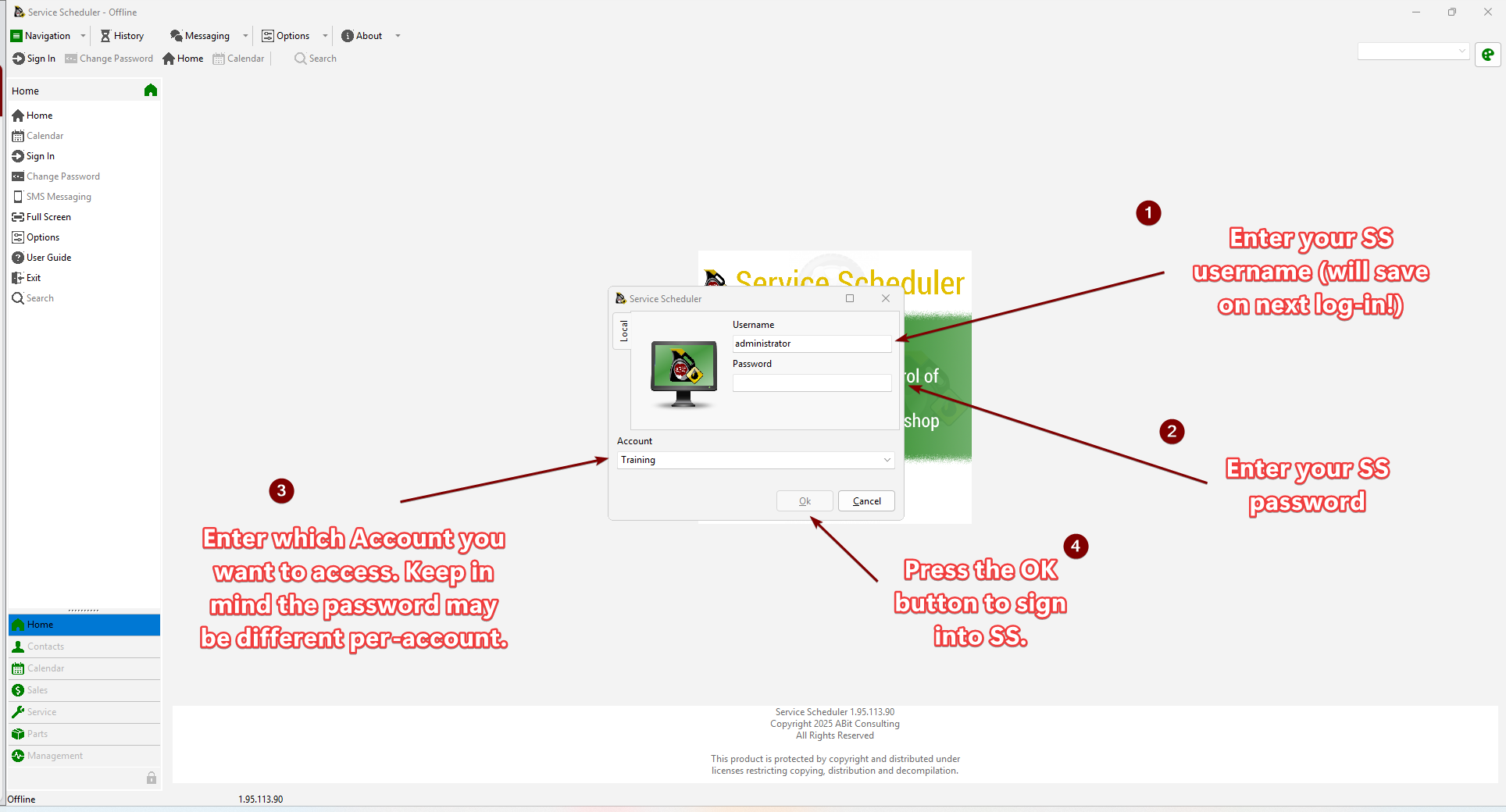
When you start Service Scheduler, you will be shown a pop-up window to log into the application.
Your Service Scheduler username and password is provided by your IT support. The account section will only appear if you are a part of multiple accounts for your Policebook site. Please pick the account that is best suited for your current use. You can switch between accounts once you have signed into the application.
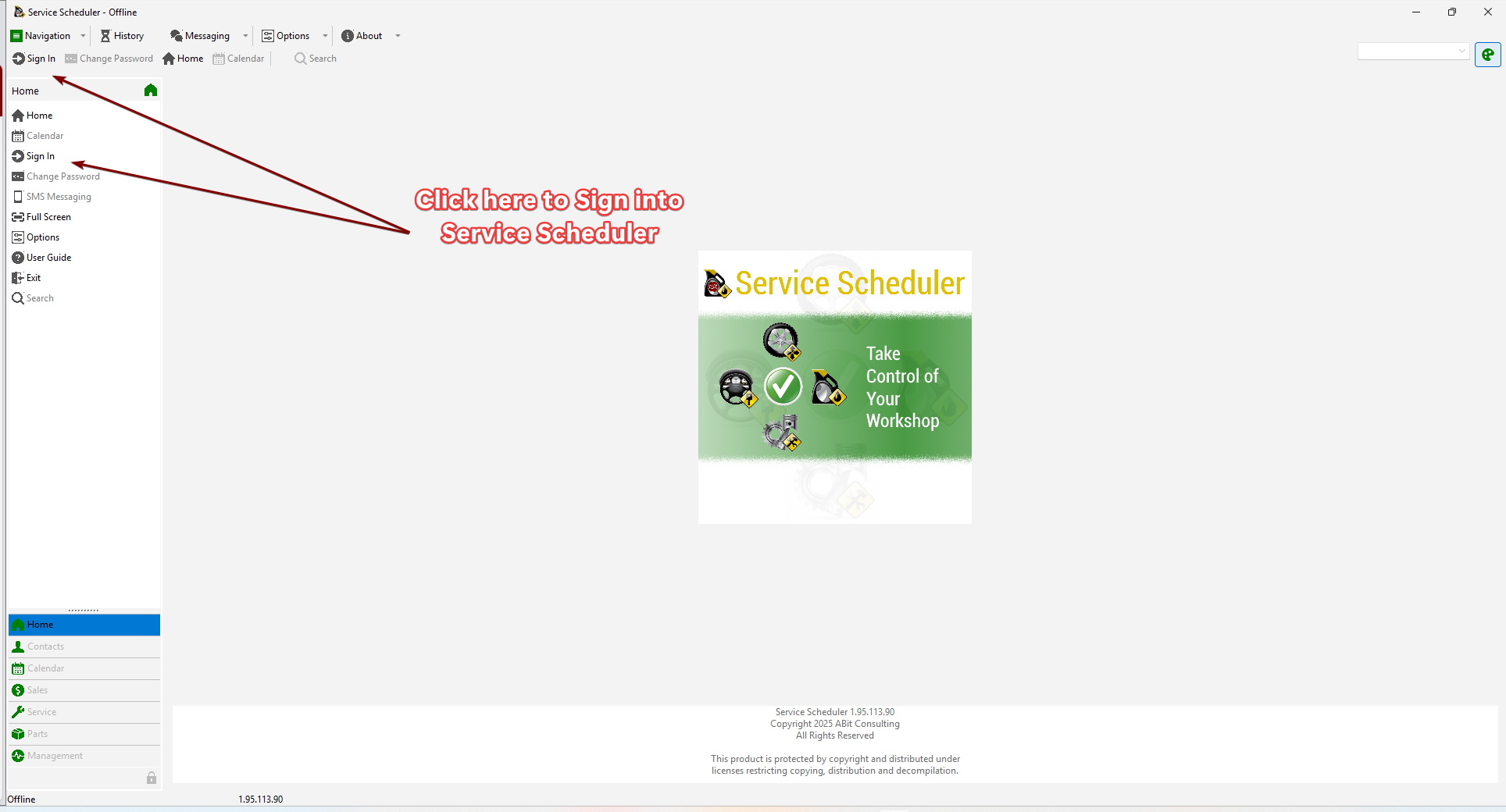
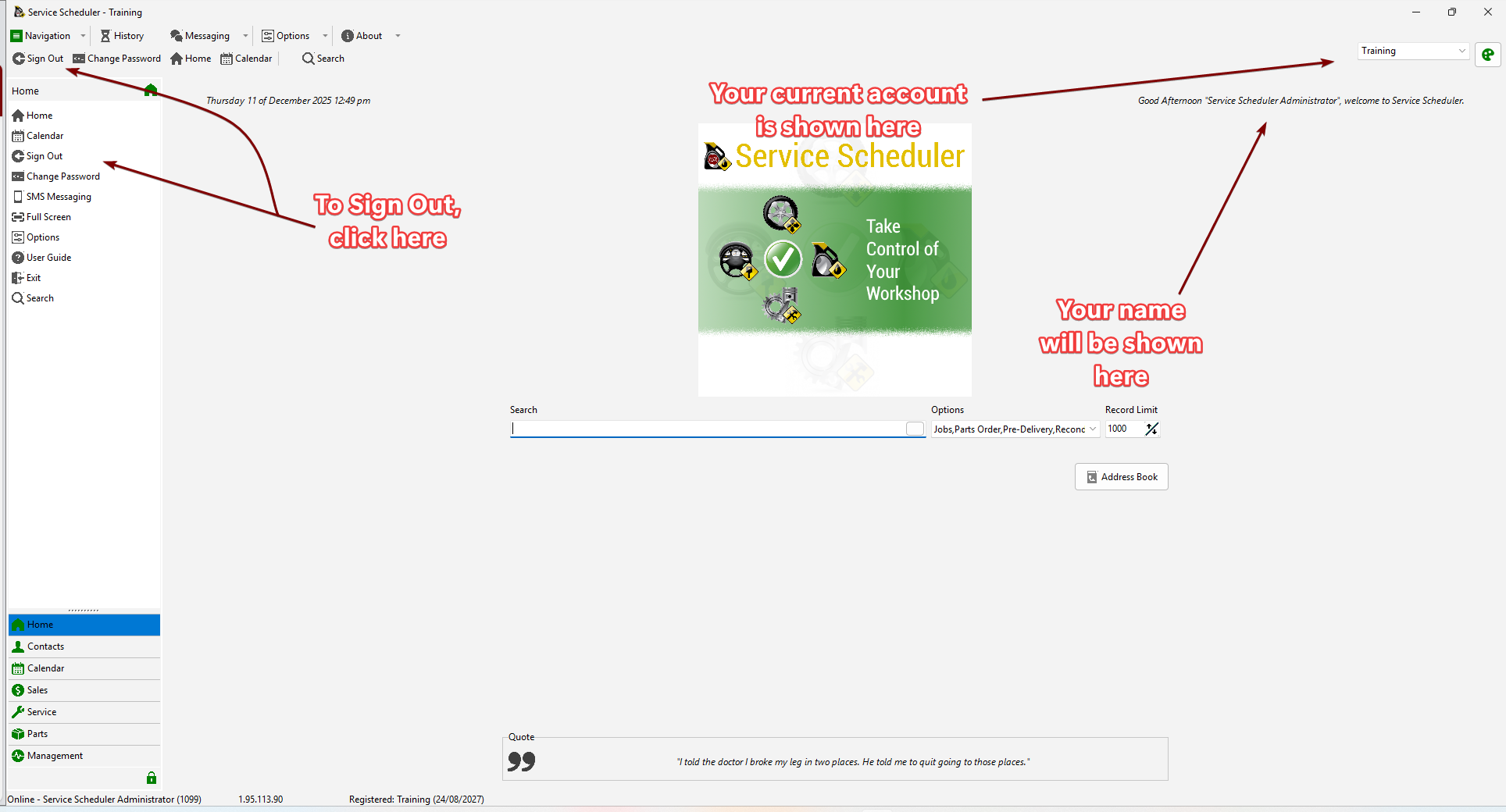
If you closed the pop-up, you can still sign in by pressing the 2 buttons at the top-left of the screen called "Sign In".
After a successful sign-in, you will be greeted by the front page of Service Scheduler. You will be able to see the current account at the top-right corner of the application, with a greeting message below showing who is signed into the application currently.
To sign out, you can go to the left sidebar or the top bar.
Loan car diary
Creating, editing and deleting entries
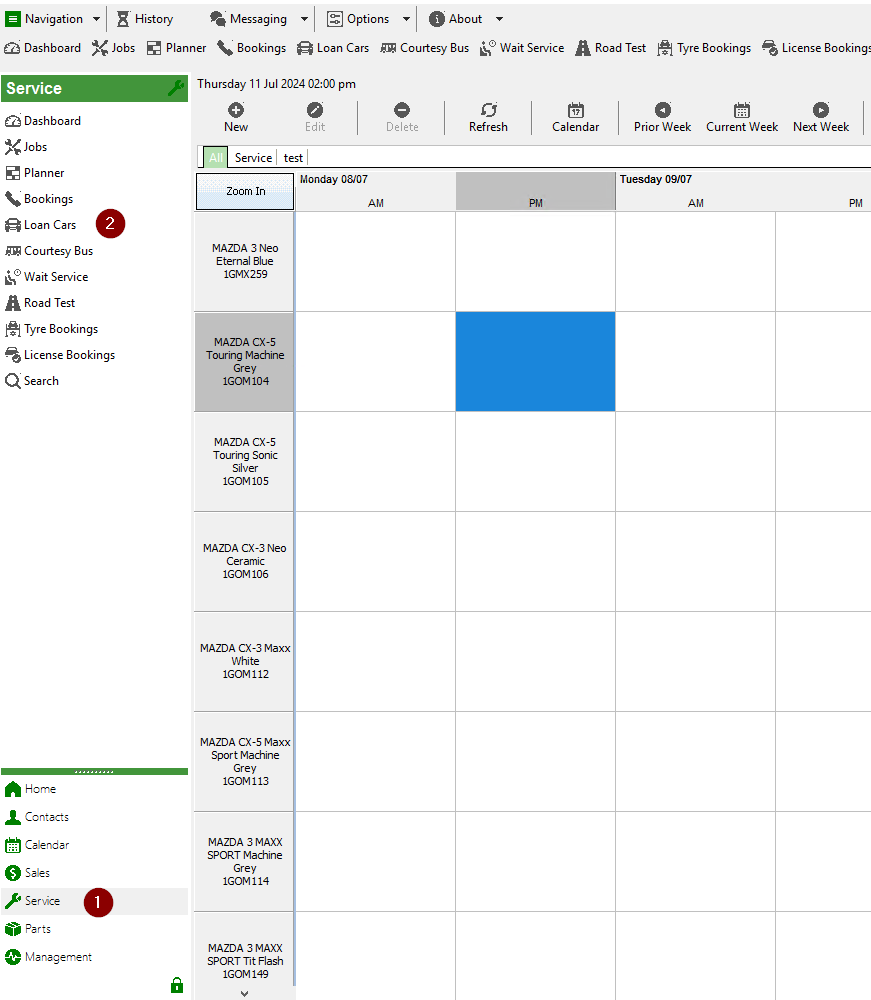
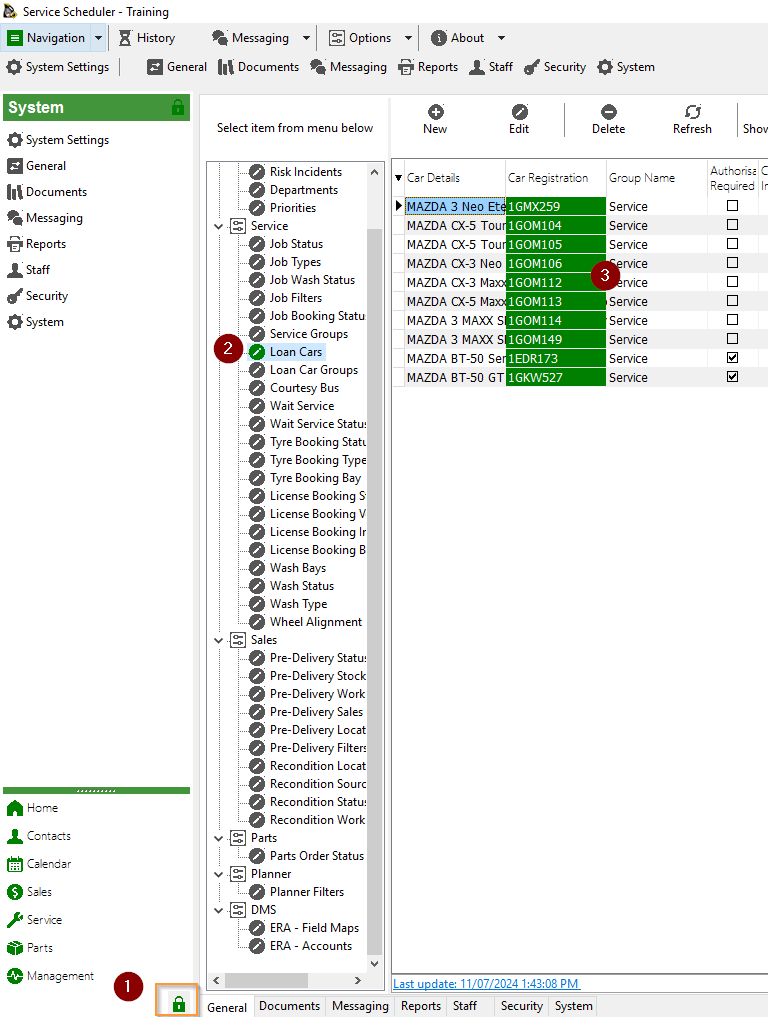
To access the loan car diary select Service -> Loan cars
New entry
Double click on desired date and available vehicle. If the vehicle is password protected enter the required password.
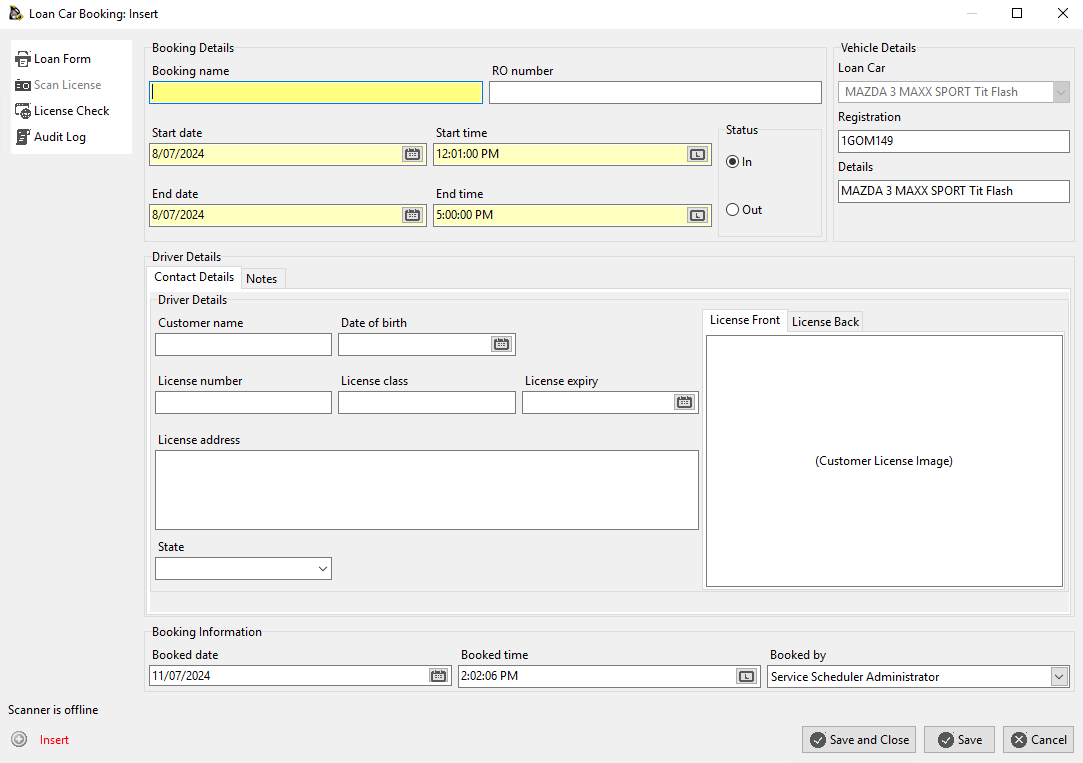
If you are using the ABit License Scanner you can place the license on the scanner and all details and a copy of the image are extracted and stored.
Edit entry
Double click on an entry to make changes
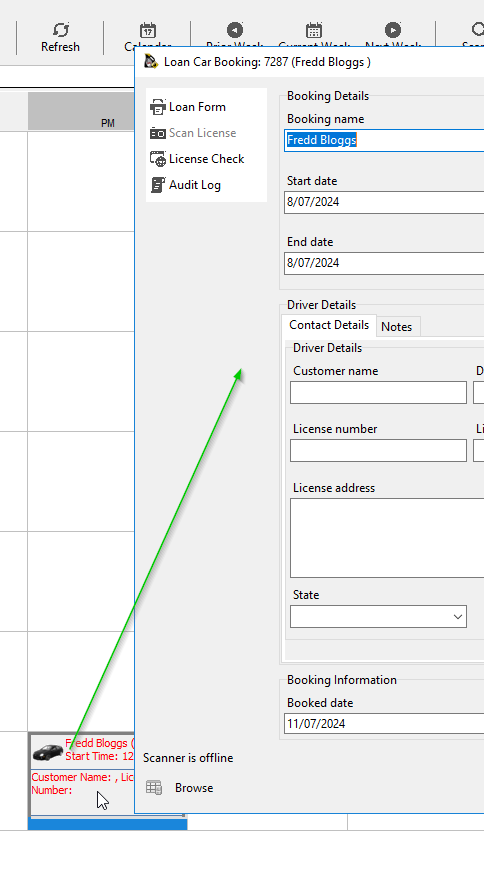
Move entry
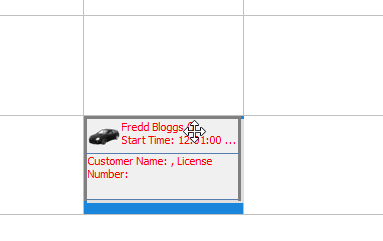
Move the mouse of an entry until the icon changes into 4 arrows. Hold down the mouse button and move the entry.
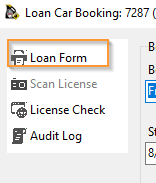
Loan car form
If a Loan Form has been configured in Loan Car Maintenance the form can be printed from the Loan Form button. The Loan Form will fill in the required fields and be displayed in Microsoft Word.
Workstations will require Microsoft Word for this feature to work

Loan car diary administration
Creating, editing or deleting a loan car
NOTE: Deleting a loan car that has history is not recommended. Set the vehicle to inactive
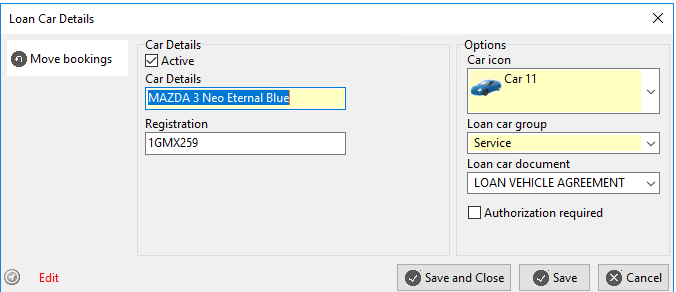
Create a new or edit existing vehicle
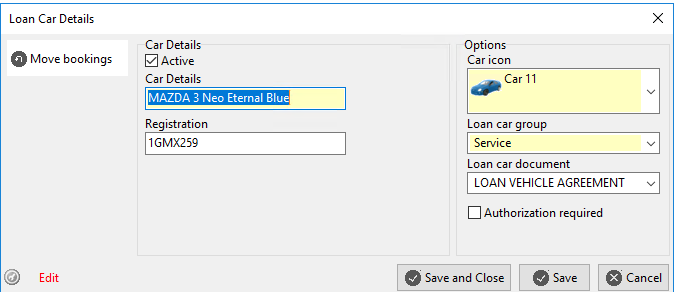
| Active | Is vehicle available in the calendar | |
| Authorization required | To add or edit a booking a password is required | The password is specified in system settings loan_car_override |
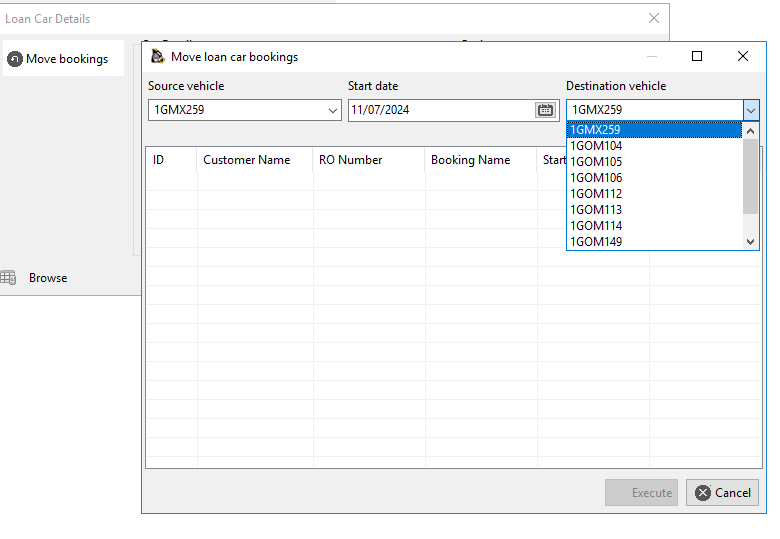
Moving bookings to another vehicle
If you are making a vehicle inactive, use the "Move bookings" option to reassigned bookings to another vehicle.
Loan car forms
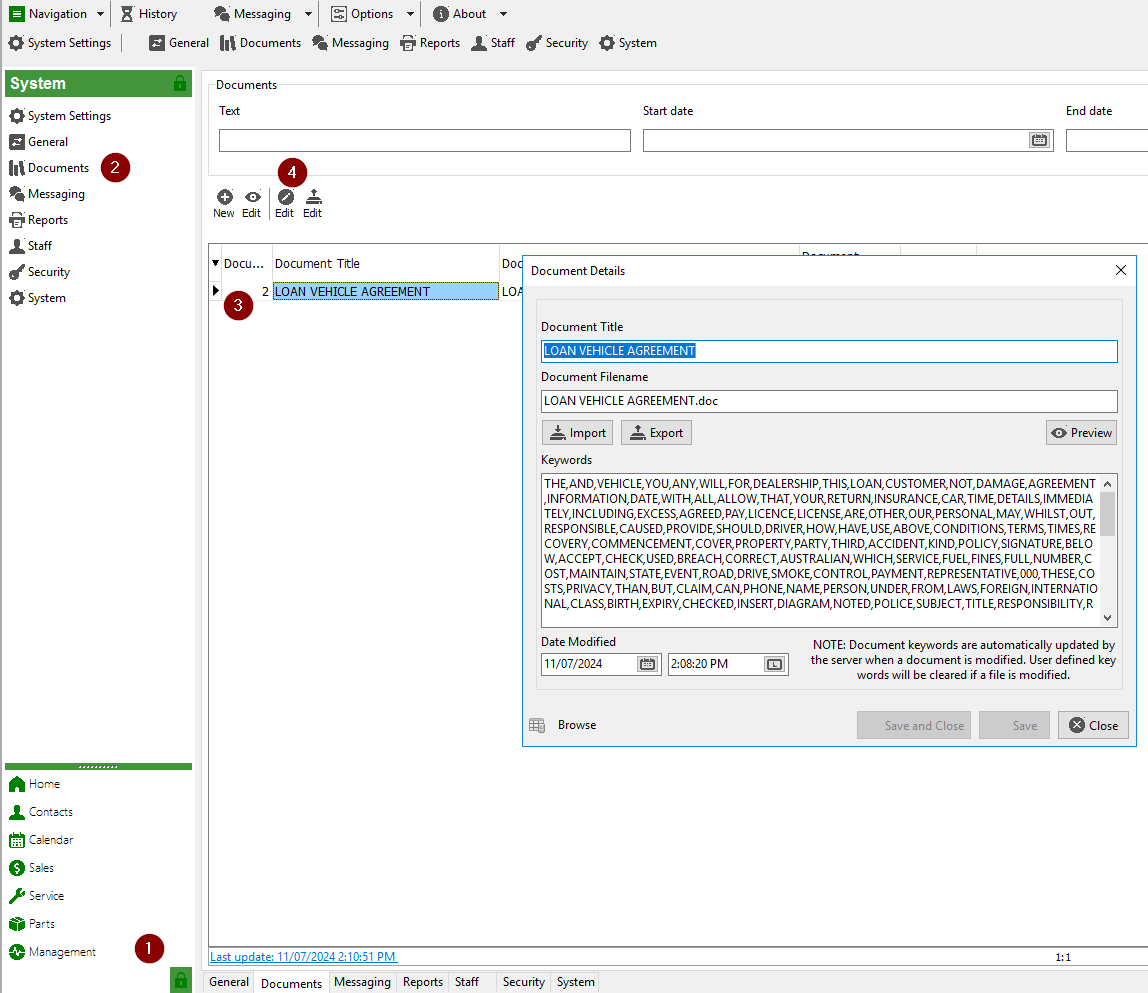
Locate the document that matches the Loan car document drop down name in system documents.
Use the export and import buttons to obtain the word document and replace it as needed.
Loan Form Fields (Merge Fields)
The following fields can be placed onto a loan form and data will automatically be merged.
| Field name | Description |
| :customer_name: | Customer name |
| :ro_number: | Repair Order Number |
| :customer_license_number: | Drivers license number |
| :customer_license_expiry_date: | License expiry date |
| :car_details: | Vehicle Description |
| :booking_start_date: | Booking start date |
| :booking_end_date: | Booking end date |
| :booking_start_time: | Booking start time |
| :booking_end_time: | Booking end time |
| :car_registration: | Vehicle Registration |
System settings
System settings related to the loan car diary
| Key | Description |
| loan_car_calendar_days | Number of days to show on the loan car calendar (eg 5 or 7 days) |
| loan_car_delete_password | The password used to delete an entry |
| loan_car_override | The password use to modify bookings on a vehicle with
|

Workshop planner
Adding staff / contractors
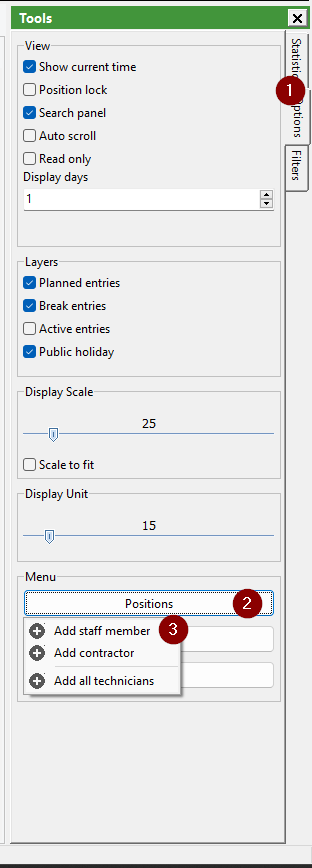
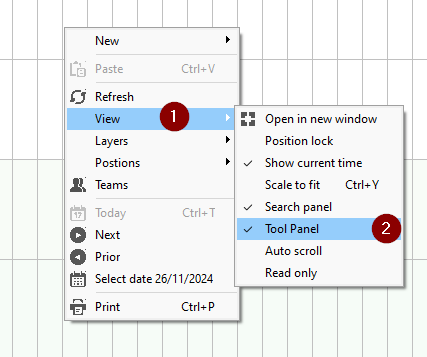
If the planner has not staff members, select the tools then press on the positions button
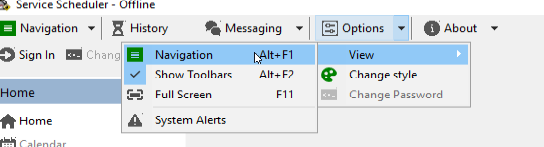
User interface
| Toggle navigation | ALT + F1 |
| Toggle toolbars | ALT + F2 |