# VPN Guide

Need assistance to enable MFA? Look at this page: <span lang="SR-LATN-RS" style="font-size: 12.0pt; line-height: 115%; font-family: 'Aptos',sans-serif; mso-ascii-theme-font: minor-latin; mso-fareast-font-family: 'Times New Roman'; mso-hansi-theme-font: minor-latin; mso-bidi-font-family: Arial; mso-bidi-theme-font: minor-bidi; mso-ansi-language: SR-LATN-RS; mso-fareast-language: EN-US; mso-bidi-language: AR-SA;">[Sophos VPN - MFA Guide using Sophos Intercept X](https://help.abitsystems.com.au/books/sophos/page/sophos-vpn-mfa-guide-using-sophos-intercept-x "Sophos VPN - MFA Guide using Sophos Intercept X")</span>

---

<span lang="SR-LATN-RS">1. Visit the VPN portal of your company by going to [https://0.0.0.0:8443](https://0.0.0.0:8443) or [htttps://0.0.0.0:7443](htttps://0.0.0.0:7443)</span>

<p class="callout info"><span lang="SR-LATN-RS" style="line-height: 115%; font-family: Aptos, sans-serif;">(replace **0.0.0.0** with the IP address given, like [https://49.21.255.29:8443](https://49.21.255.29:8443).)</span></p>

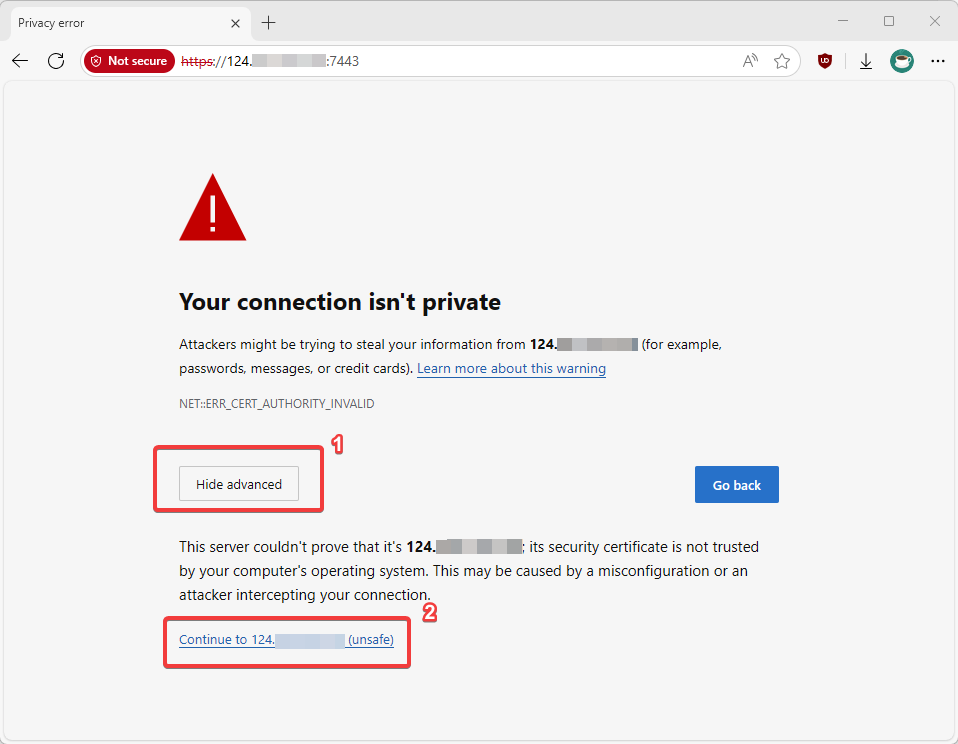
<span lang="SR-LATN-RS">2. If prompted, click Advanced, then "Continue to x.x.x.x (unsafe)"</span>

[![image.png](https://help.abitsystems.com.au/uploads/images/gallery/2025-06/scaled-1680-/tVcimage.png)](https://help.abitsystems.com.au/uploads/images/gallery/2025-06/tVcimage.png)

<span lang="SR-LATN-RS">  
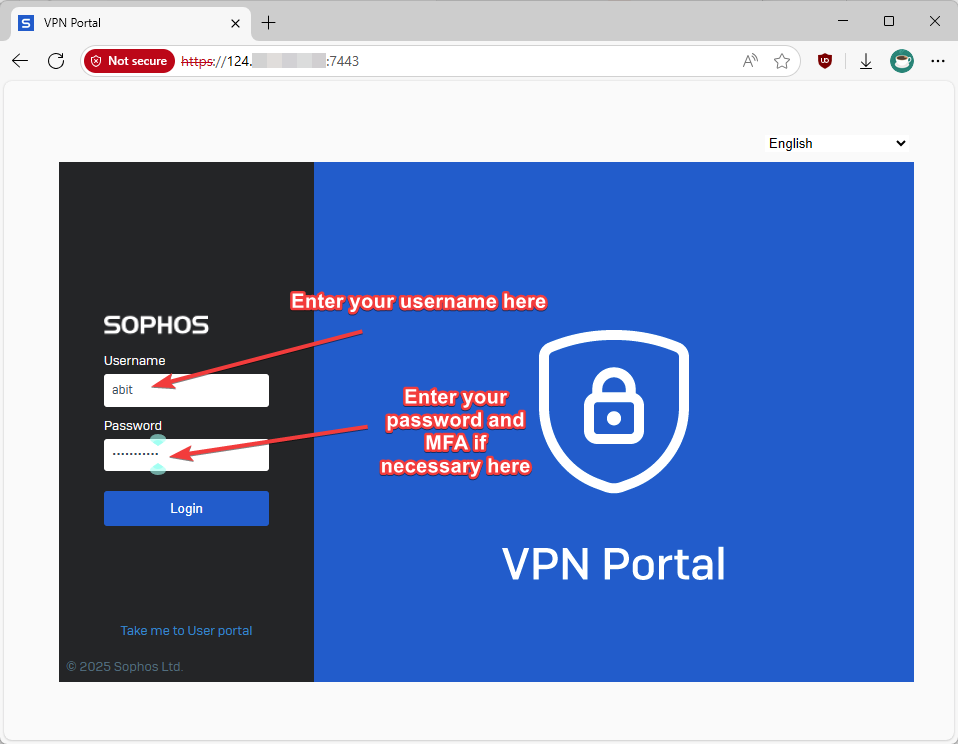
3\. You should now see a screen similar to the image below. If your account has been allowed in the firewall, you can sign in here. If you can get into the VPN portal, skip to Step 6.</span>

<span lang="SR-LATN-RS">Username: \[Username for the PC\] / \[Email\]  
Password: \[Password for the PC\]</span>

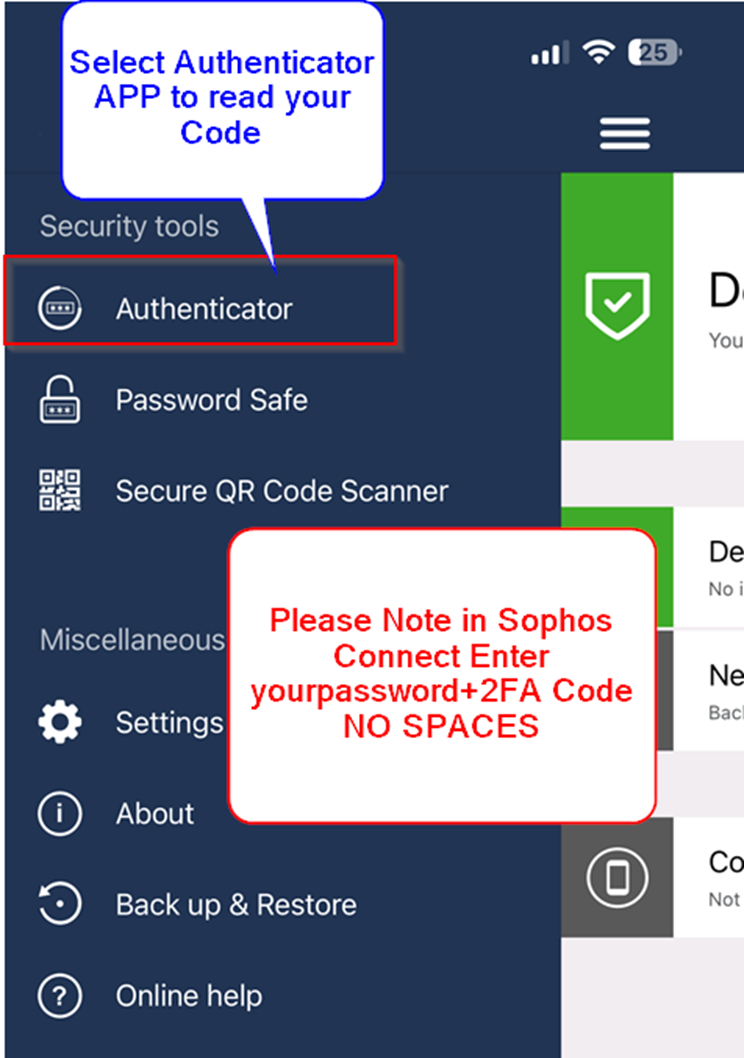
<p class="callout info"><span lang="SR-LATN-RS">Note: if you have MFA setup, you will need to enter those digits after the password from Sophos Intercept X App; Password+MFA Code, no spaces e.g.: "ClearSky654731</span><span lang="SR-LATN-RS">"</span><span lang="SR-LATN-RS" style="font-size: 12.0pt; line-height: 115%; font-family: 'Aptos',sans-serif; mso-ascii-theme-font: minor-latin; mso-fareast-font-family: 'Times New Roman'; mso-hansi-theme-font: minor-latin; mso-bidi-font-family: Arial; mso-bidi-theme-font: minor-bidi; mso-ansi-language: SR-LATN-RS; mso-fareast-language: EN-US; mso-bidi-language: AR-SA;">  
</span></p>

<p class="callout warning">If you have tried to log-in, but cannot; it may be because you have not been added to the allowed users in the firewall yet. If that is the case, please contact ABit.</p>

[![image.png](https://help.abitsystems.com.au/uploads/images/gallery/2025-06/scaled-1680-/mcfimage.png)](https://help.abitsystems.com.au/uploads/images/gallery/2025-06/mcfimage.png)

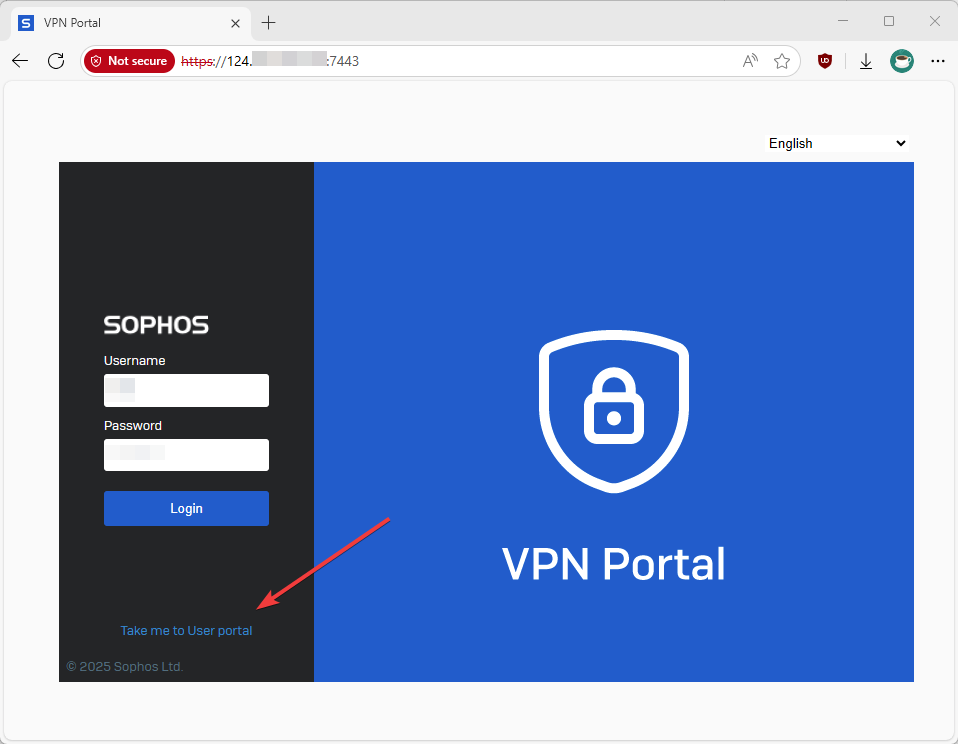
<span lang="SR-LATN-RS">4. Sometimes, you will need to generate your profile before the VPN will allow you to log-in. If that is the case, please click "Take me to User portal".</span>

[![image.png](https://help.abitsystems.com.au/uploads/images/gallery/2025-06/scaled-1680-/igmimage.png)](https://help.abitsystems.com.au/uploads/images/gallery/2025-06/igmimage.png)

[![image.png](https://help.abitsystems.com.au/uploads/images/gallery/2025-06/scaled-1680-/ePQimage.png)](https://help.abitsystems.com.au/uploads/images/gallery/2025-06/ePQimage.png)
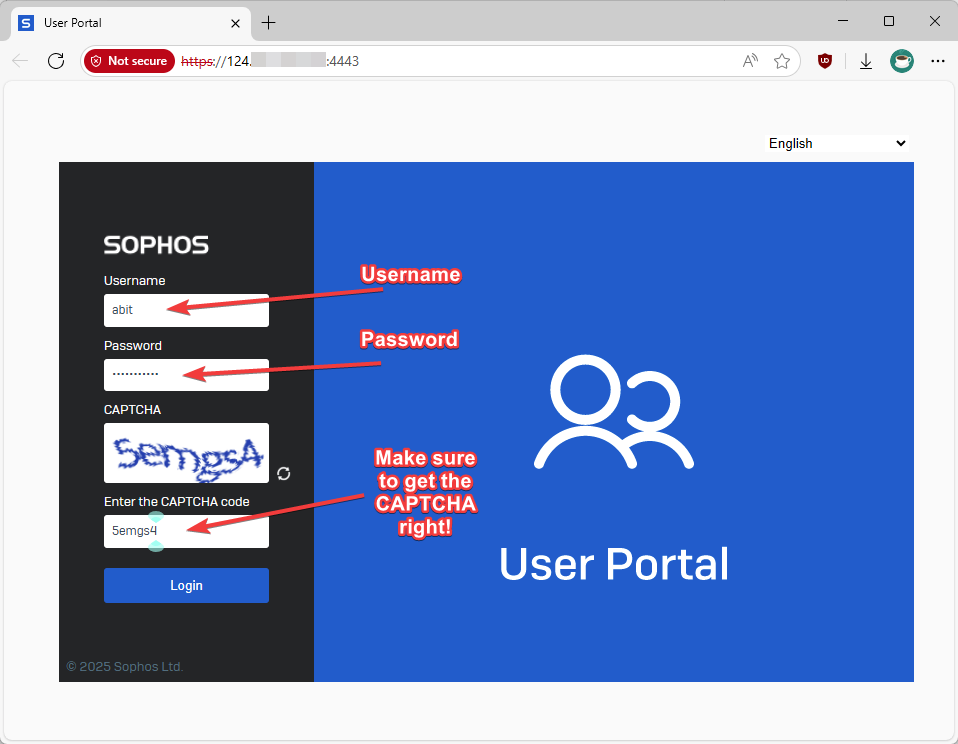
5\. After a successful log-in to the User portal, your firewall profile has been generated. You will need to contact ABit once you have done this, so they can allow that profile to access the VPN.

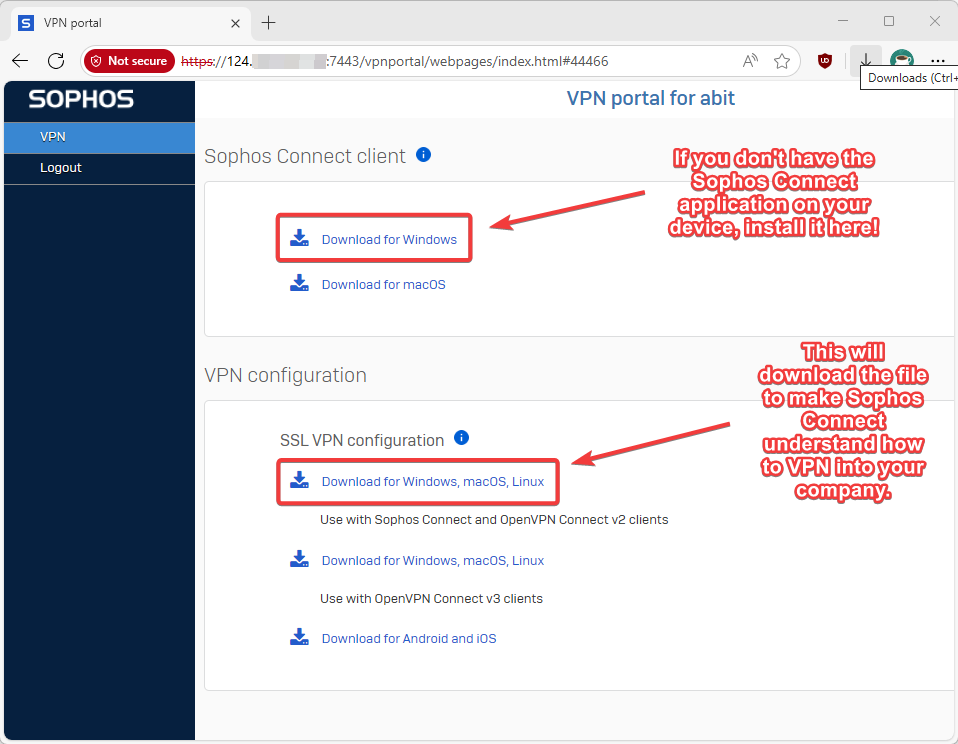
<span lang="SR-LATN-RS">6. Now that you are in the VPN portal, please download the following. You can skip the Sophos Connect client if you already have it installed.</span>

[![image.png](https://help.abitsystems.com.au/uploads/images/gallery/2025-06/scaled-1680-/A9dimage.png)](https://help.abitsystems.com.au/uploads/images/gallery/2025-06/A9dimage.png)

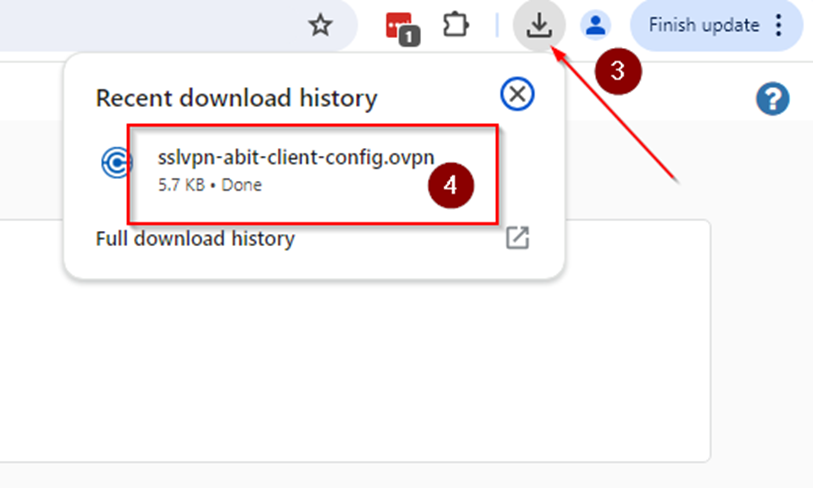
<span lang="SR-LATN-RS">7</span><span lang="SR-LATN-RS">. G</span><span lang="SR-LATN-RS">o to browser downloads upper corner folder double and double click config file or got to download folder windows and double click the Config file </span><span lang="SR-LATN-RS" style="font-size: 12.0pt; line-height: 115%; font-family: 'Aptos',sans-serif; mso-ascii-theme-font: minor-latin; mso-fareast-font-family: 'Times New Roman'; mso-hansi-theme-font: minor-latin; mso-bidi-font-family: Arial; mso-bidi-theme-font: minor-bidi; mso-ansi-language: SR-LATN-RS; mso-fareast-language: EN-US; mso-bidi-language: AR-SA;">  
</span>

<span lang="SR-LATN-RS" style="font-size: 12.0pt; line-height: 115%; font-family: 'Aptos',sans-serif; mso-ascii-theme-font: minor-latin; mso-fareast-font-family: 'Times New Roman'; mso-hansi-theme-font: minor-latin; mso-bidi-font-family: Arial; mso-bidi-theme-font: minor-bidi; mso-ansi-language: SR-LATN-RS; mso-fareast-language: EN-US; mso-bidi-language: AR-SA;">![](https://help.abitsystems.com.au/uploads/images/gallery/2024-07/embedded-image-gh37cb5a.png)</span>

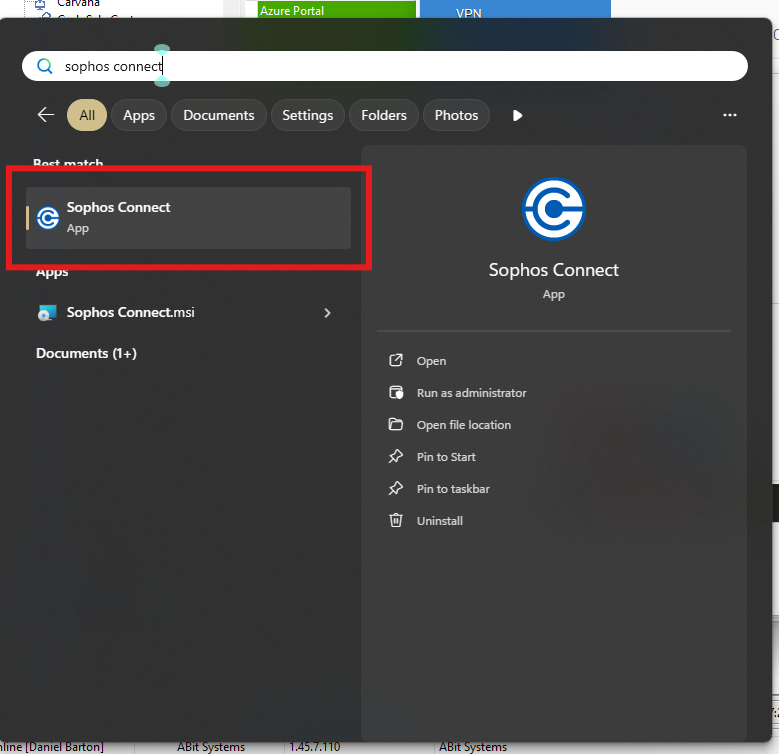
8\. Open sophos connect.

[![image.png](https://help.abitsystems.com.au/uploads/images/gallery/2025-06/scaled-1680-/94Fimage.png)](https://help.abitsystems.com.au/uploads/images/gallery/2025-06/94Fimage.png)

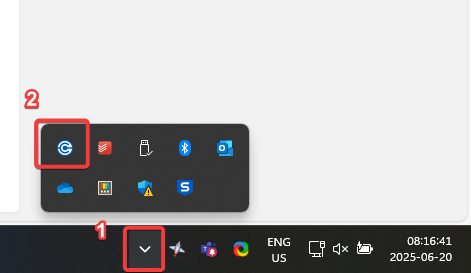
9\. Sophos Connect should now be open. If you do not see it in the taskbar, it is most probably hiding in the hidden menu. Try seeing if you find it there.

[![image.png](https://help.abitsystems.com.au/uploads/images/gallery/2025-06/scaled-1680-/CtDimage.png)](https://help.abitsystems.com.au/uploads/images/gallery/2025-06/CtDimage.png)
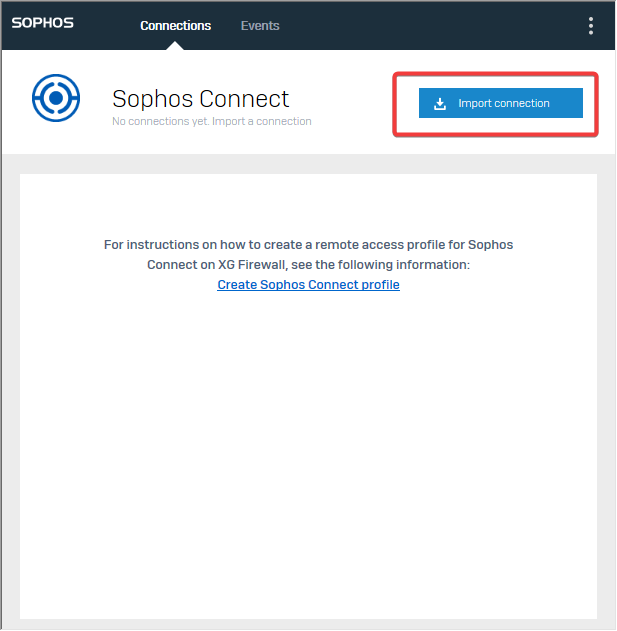
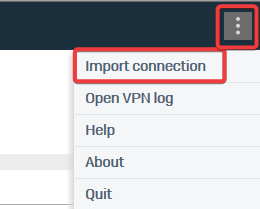
<span lang="SR-LATN-RS">10. You will now need to click "Import Connection", and then navigate to the file you downloaded earlier. You can also find this in the Top-right dotted menu, and then "Import connection"</span>

[![image.png](https://help.abitsystems.com.au/uploads/images/gallery/2025-06/scaled-1680-/pTSimage.png)](https://help.abitsystems.com.au/uploads/images/gallery/2025-06/pTSimage.png)

[![image.png](https://help.abitsystems.com.au/uploads/images/gallery/2025-06/scaled-1680-/jsVimage.png)](https://help.abitsystems.com.au/uploads/images/gallery/2025-06/jsVimage.png)
11.1. Choose the file.

[![image.png](https://help.abitsystems.com.au/uploads/images/gallery/2025-06/scaled-1680-/gz5image.png)](https://help.abitsystems.com.au/uploads/images/gallery/2025-06/gz5image.png)
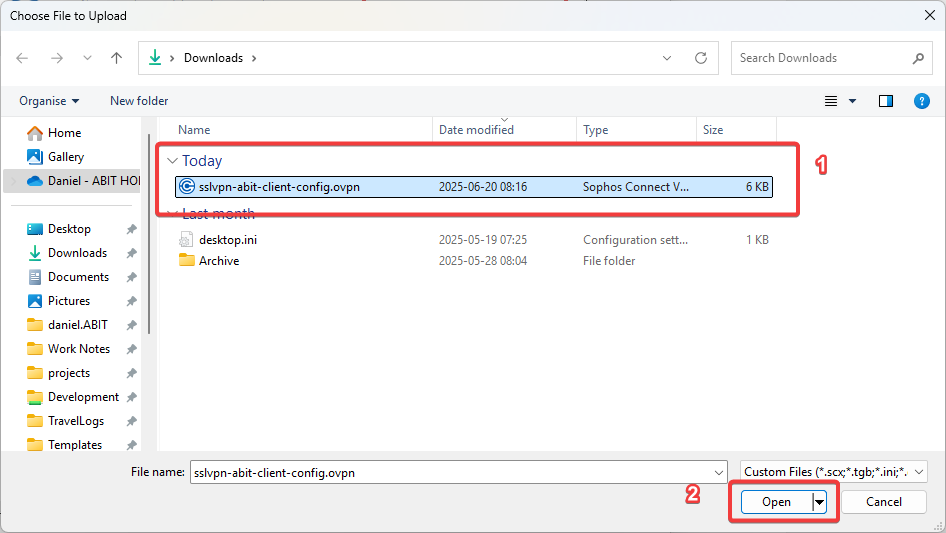
12\. You should now see that same IP address. Hit "Connect", and enter the same details that you needed to enter for the VPN portal. Be mindful of the MFA.

[![image.png](https://help.abitsystems.com.au/uploads/images/gallery/2025-06/scaled-1680-/mzvimage.png)](https://help.abitsystems.com.au/uploads/images/gallery/2025-06/mzvimage.png)
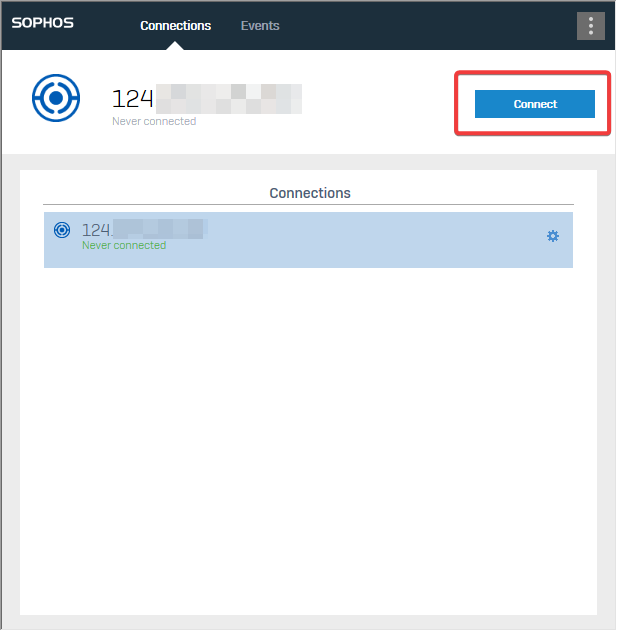
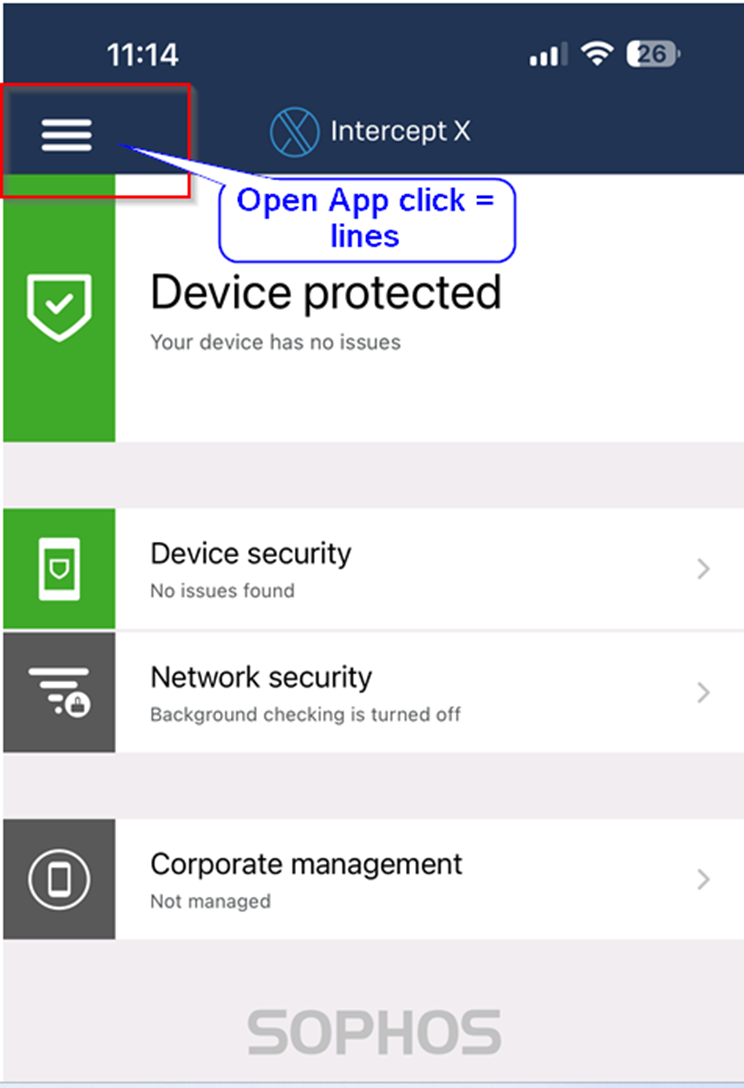
12.1. if you have MFA enabled with Sophos Intercept X, load your 6-digit code by clicking the 3 lines, going to Authenticator, and you should see your 6-digit code there.

<table border="1" id="bkmrk--18" style="border-collapse: collapse; width: 100%;"><colgroup><col style="width: 50%;"></col><col style="width: 50%;"></col></colgroup><tbody><tr><td>![](https://help.abitsystems.com.au/uploads/images/gallery/2024-07/embedded-image-xikywpzx.png)  
</td><td>![](https://help.abitsystems.com.au/uploads/images/gallery/2024-07/embedded-image-obqblyfo.png)  
</td></tr></tbody></table>

13\. Sophos Connect should now be connected into your company, and you should be able to access company resources while out of the office.

[![image.png](https://help.abitsystems.com.au/uploads/images/gallery/2025-06/scaled-1680-/7c1image.png)](https://help.abitsystems.com.au/uploads/images/gallery/2025-06/7c1image.png)

You should also see a green tick on the taskbar icon itself.

[![image.png](https://help.abitsystems.com.au/uploads/images/gallery/2025-06/scaled-1680-/WfIimage.png)](https://help.abitsystems.com.au/uploads/images/gallery/2025-06/WfIimage.png)