Text Print Server - User Guide
Overview
Text print server is a virtual printer running as a windows server to capture the text output.
More than 1 printer can be specified either running on different IP addresses (alias or adapters) and ports. The ports can be RAW or LPD.
Once a print job is captured it is passed onto Print Processors. These processors will run in a specified order and could convert the job or redirect the job onto another printer.

Profile example

Profile processors

Processor example

Installation
Download the latest version from ABit Product Downloads
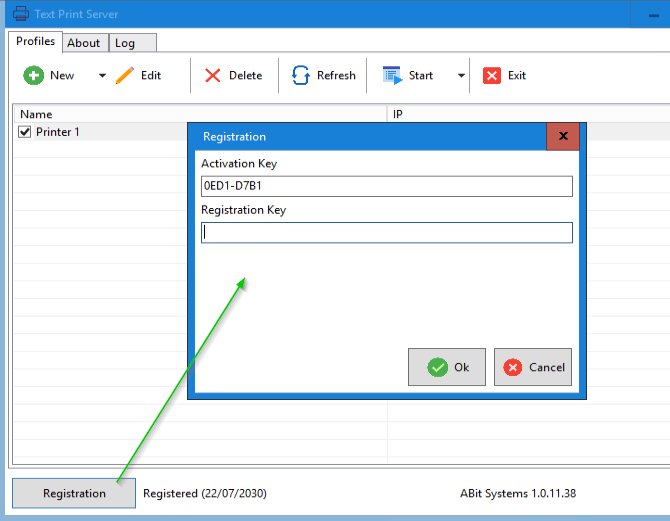
Register application by providing activation key to software@abitsystems.com.au
Processors
Print processors allow manipulation of a print job and its output. The processors are a plugin system so they can be enabled and modified for each printer instance.
Print processors are executed in the run order specified.

LineReportToCSV
Take a line report and generate CSV from it. The processor will attempt to detect if the data is in a vertical or horizontal format.

| Enabled | Yes or No | The processor will be skipped if not enabled |
| Run order | Numeric value | The order the processor will be executed |
| Vertical fieldname column width | For vertical reports the width of the column. -1 to auto detect. |
If a report is in a vertical format. eg
The width is the space between Field1 and : |
| Field multivalue separator | Default is | | If CSV data is detected in the field the separator is modified |
| Autofill index position | The index value of the report. |
Line 5 in this example Record 1 is assumed.
|
| Default autofill value for fields | Fields that are detected as blank because they would contain the index field are automatically filled in | |
| Output filename | The filename generated default %sourcefilefolder%%title%_%date%_%time%_%profilename%.csv | CSV filename generated |
| Change output filename | The filename passed to the next processor is the CSV file |
Redirect
The redirect processor allows the print job to be sent to a printer

| Enabled | Yes or No | The processor will be skipped if not enabled |
| Run order | Numeric value | The order the processor will be executed |
| Printer name | Windows printer name | The name of the printer to redirect the data |
| Printer type | Send the job and text or raw |
PDF will create a PDF from the text data. This could be the original text or modified data from a processor like LineReportToCSV

| Enabled | Yes or No | The processor will be skipped if not enabled |
| Run order | Numeric value | The order the processor will be executed |
| Change output filename | Yes or No (Default No) | The filename that is passed to the next processor will be the PDF and not the original text file |
| Page orientation | Landscape or Portrait | |
| Lines per page | New page at specific line count. Use 0 to check for form feeds in the data | |
| Skip empty pages | Don't create a PDF page for empty pages | |
| Font size | Font size used in PDF | |
| Font | Font used in PDF | |
| Skip pages | Option to exclude certain pages from PDF generation | |
| Output filename | The PDF filename generated |
SMTP

Send email with custom email addresses, subject, body and files.
| Enabled | Yes or No | The processor will be skipped if not enabled |
| Run order | Numeric value | The order the processor will be executed |
| Server | SMTP server hostname | |
| Port | SMTP server port | |
| From name | Name email is sent from | |
| From address | Email address email is sent from | |
| Recipients | Email recipients | See metadata |
| Subject | Email subject | See metadata |
| Authentication type | SMTP authentication type (None, Default or SASL) | |
| Username | SMTP username | |
| Password | SMTP password | |
| Body | Email body | See metadata |
| Attachments | A list of files to attach | Default is %inputfilename%. This could also include direct file system files if required. eg C:\Users\Public\Documents\TermsAndConditions.pdf. See metadata |
| Reply to name | The name used if recipient select reply | |
| Reply to address | The email address uses if a recipient selects reply | |
| HTML body | The body content contains HTML | |
| Read reciept | Request a read receipt | |
| SSL version | 1.2 is generally required | |
| TLS | None, Implicit, Required, Explicit |
Sharepoint
Upload files to a sharepoint site

An Entra App registration is required
 |
Ensure application permission Sites.Manage.All is granted
|

| Enabled | Yes or No | The processor will be skipped if not enabled |
| Run order | Numeric value | The order the processor will be executed |
| Client id | Entra client id | |
| Tenant id | Entra tenant id | |
| Client secret | Entra client secret | |
| Site | Select sharepoint site | |
| Drive | Select sharepoint drive | |
| Folder path | Optional folder path | |
| Files | List of files to upload. | See metadata |
Metadata
As a print job flows with processors metadata is all passed along. This can be used for settings in the processor or modified along with way to be used in other processors.
Example report

Meta data will start off with simple details like filename and header
{
    "started": "2025-07-22T09:43:41.964+08:00",
    "filename": "C:\\Users\\tristan\\Desktop\\20250721_153435_RAW_172.20.98.1.txt",
    "header": "                REPORT 1  -   Page # 1",
    "headercleaned": "REPORT 1 - Page # 1",
}
A processor could then manipulate that data in a pre-process or post-process javascript
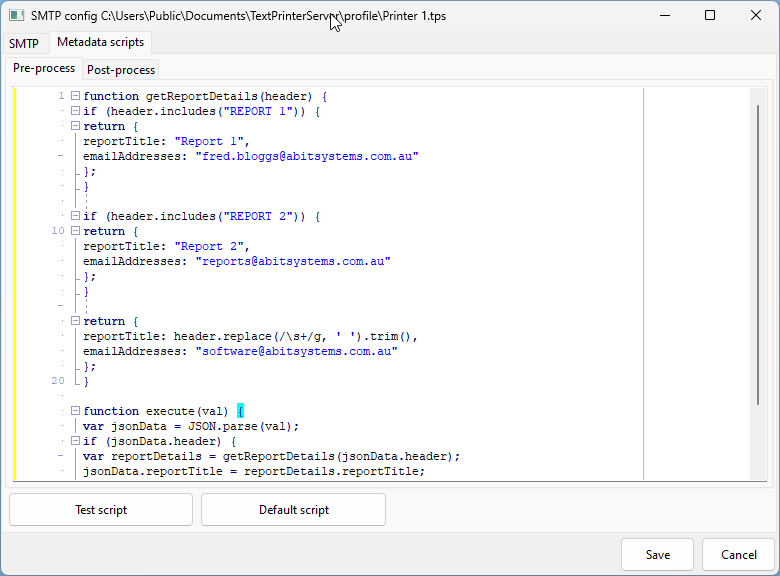
This example analyzes the header and returns back to new values in the metadata of reportTitle and emailAddresses.
function getReportDetails(header) {
if (header.includes("REPORT 1")) {
return {
reportTitle: "Report 1",
emailAddresses: "fred.bloggs@abitsystems.com.au"
};
}

if (header.includes("REPORT 2")) {
return {
reportTitle: "Report 2",
emailAddresses: "reports@abitsystems.com.au"
};
}

return {
reportTitle: header.replace(/\s+/g, ' ').trim(),
emailAddresses: "software@abitsystems.com.au"
};
}

function execute(val) {
var jsonData = JSON.parse(val);
if (jsonData.header) {
var reportDetails = getReportDetails(jsonData.header);
jsonData.reportTitle = reportDetails.reportTitle;
jsonData.emailAddresses = reportDetails.emailAddresses;
}
return JSON.stringify(jsonData, null, 2);
}
Because this is Pre-processed the processor can make use of these values immediately in it's own configuration as below. Variables that are from metadata are always prefixed with %metadata_{variablename}%
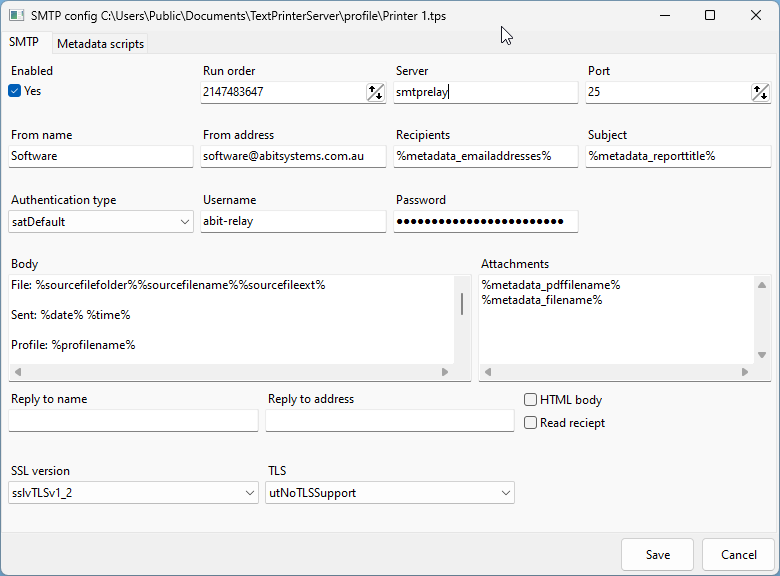
Now the metadata will reflect the following and is passed onto the next processor.
{
    "started": "2025-07-22T09:43:41.964+08:00",
    "filename": "C:\\Users\\tristan.ABIT\\Desktop\\20250721_153435_RAW_172.20.98.1.txt",
    "header": "                REPORT 1  -   Page # 1",
    "headercleaned": "REPORT 1 - Page # 1",
    "reportTitle": "Report 1",
    "emailAddresses": "fred.bloggs@abitsystems.com.au",
    "smtpResult": "OK"
}