Policebook - Installation
The User setup does not require Administrative rights to install, but means only the user that installed the program can use it. There is a System setup available, but requires Administrative rights to install. You will be able to find these options on your PoliceBook software home page. The User setup is the recommended version.
1. Click "Next" if you want to continue with the set-up, else click "Cancel", and the PoliceBook installer will close.

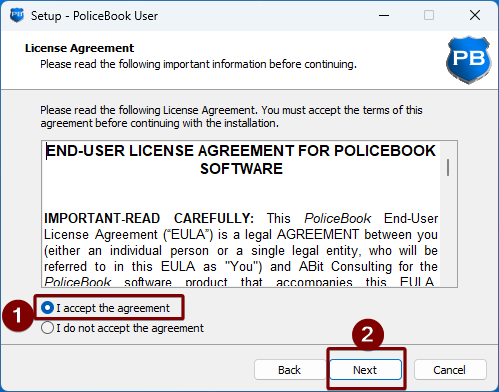
2. Please read the license agreement before continuing, then click Next. You will not be able to continue without accepting the EULA.
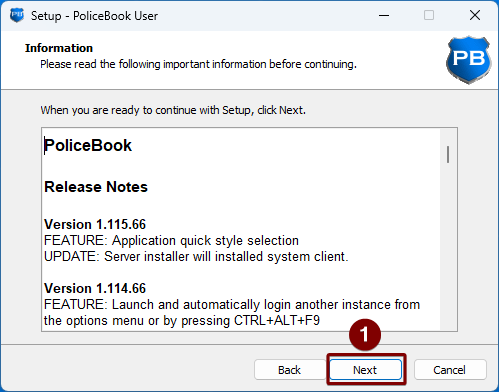
3. Please read the release notes if you are reinstalling the program, then click Next.
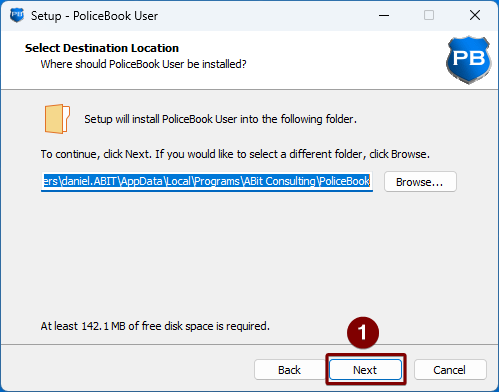
4. Please select a location to where you want PoliceBook to be installed to on your computer, or you can leave as default. Once finished, click Next.
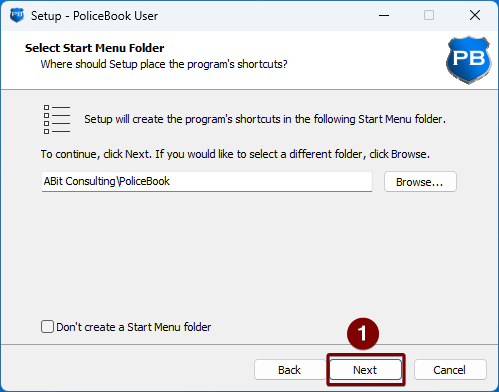
5. Please choose a Start Menu shortcut folder, or if you would like for the program shortcut in the Start Menu to be under "P", click "Don't create a Start Menu folder", then click Next.
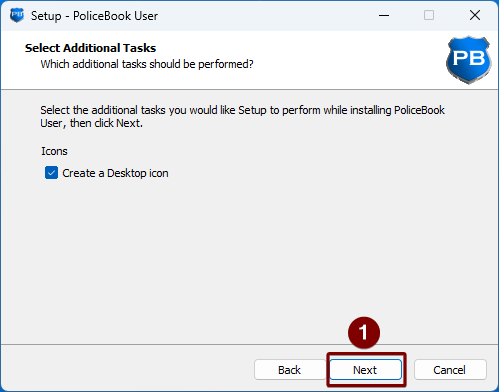
6. If you would like the installer to not create a Desktop shortcut, please uncheck the box and click Next.
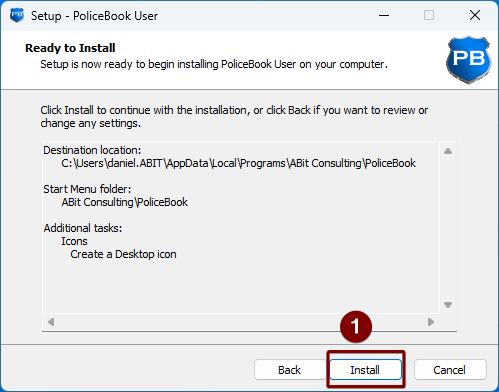
7. Once you are happy with the installation, click Install.
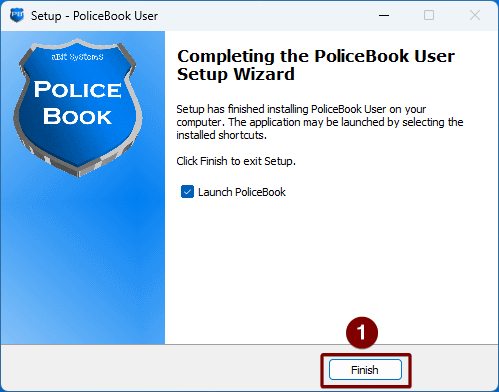
8. Once the installation is finished, you are now ready to open PoliceBook. Click Finish.