Basics
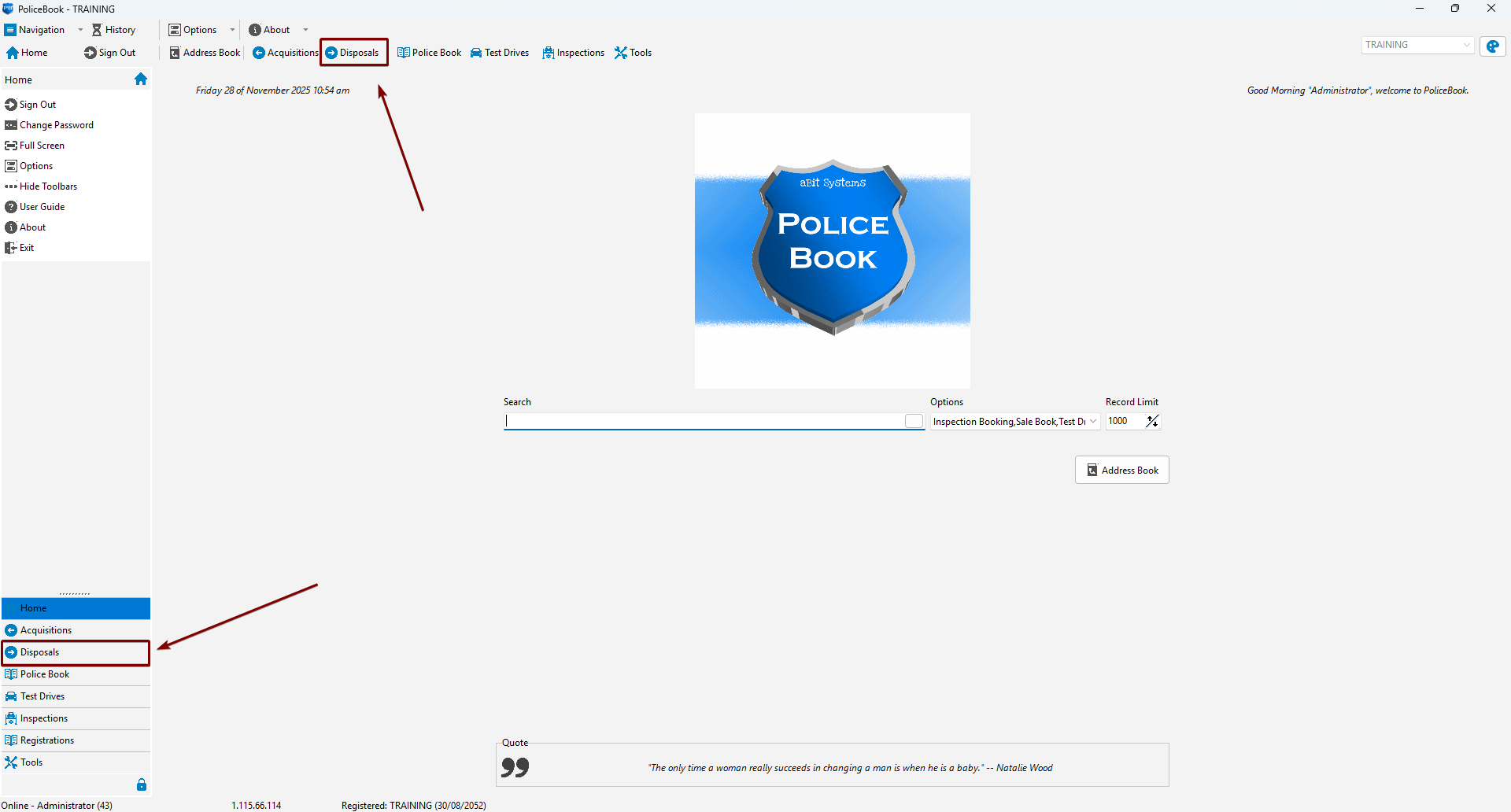
Accessing Disposals
You can access the Disposals page by clicking the Disposals button in the top toolbar, or the Disposals button in the left-side navigation menu.
Creating a new Disposal entry
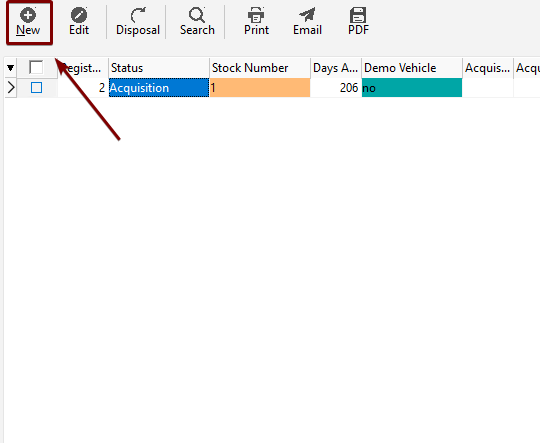
You can create a new Disposal entry by clicking "New" in the Disposal toolbar, or by right-clicking and clicking the "New" Menu Item.
| Toolbar | Right-click |
 |
 |
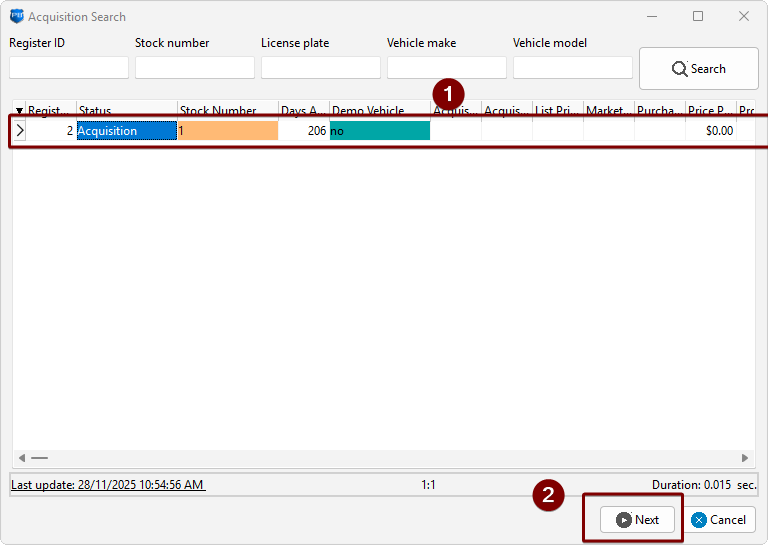
You will need to choose an Acquisition to dispose. Once you have found your Acquisition to dispose, click "Next". Make sure that it is the right vehicle to dispose.
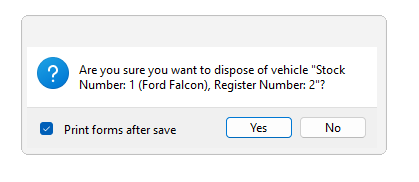
You will then get a new window for Disposal details.
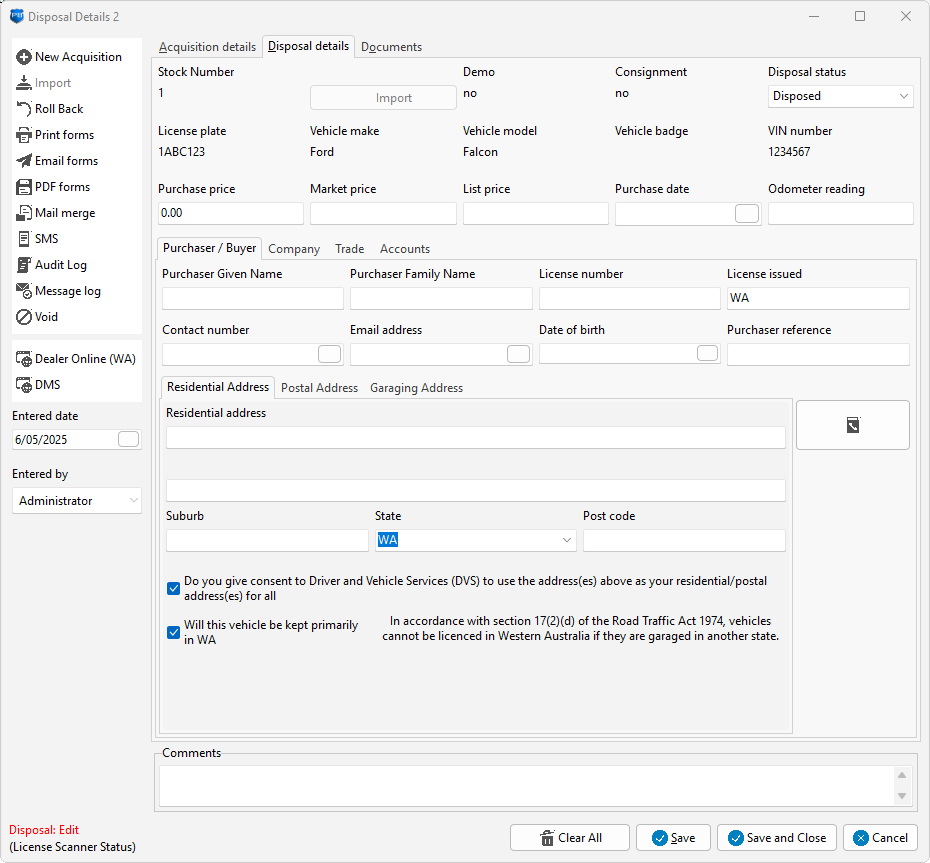
Editing an existing Disposal entry
You can edit an existing disposal entry by selecting the disposal you want to Edit, and click "Edit" in the toolbar, or by right-clicking the acquisition and clicking the "Edit" menu item.
You can then change whatever you like from there.
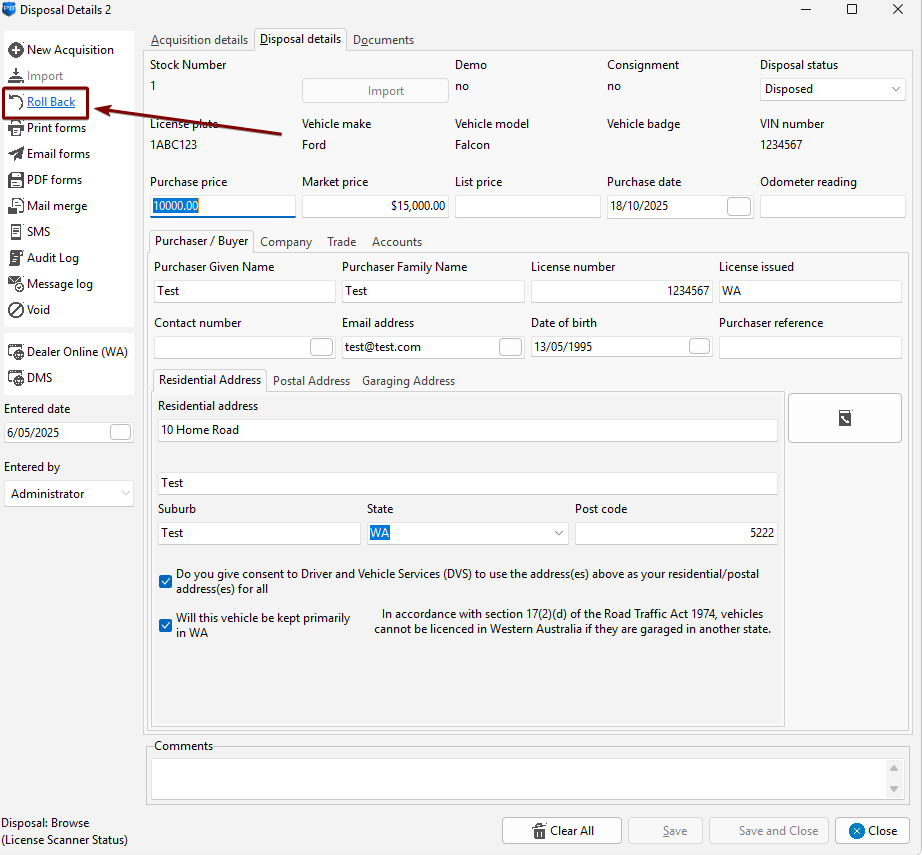
Rolling back a Disposal
If the sale has fallen through, you can roll back a disposal, returning it back into Acquisitions. You can roll back by editing the entry and clicking the "Roll back" button.