Basics
Accessing AcquisitionsTest Drives
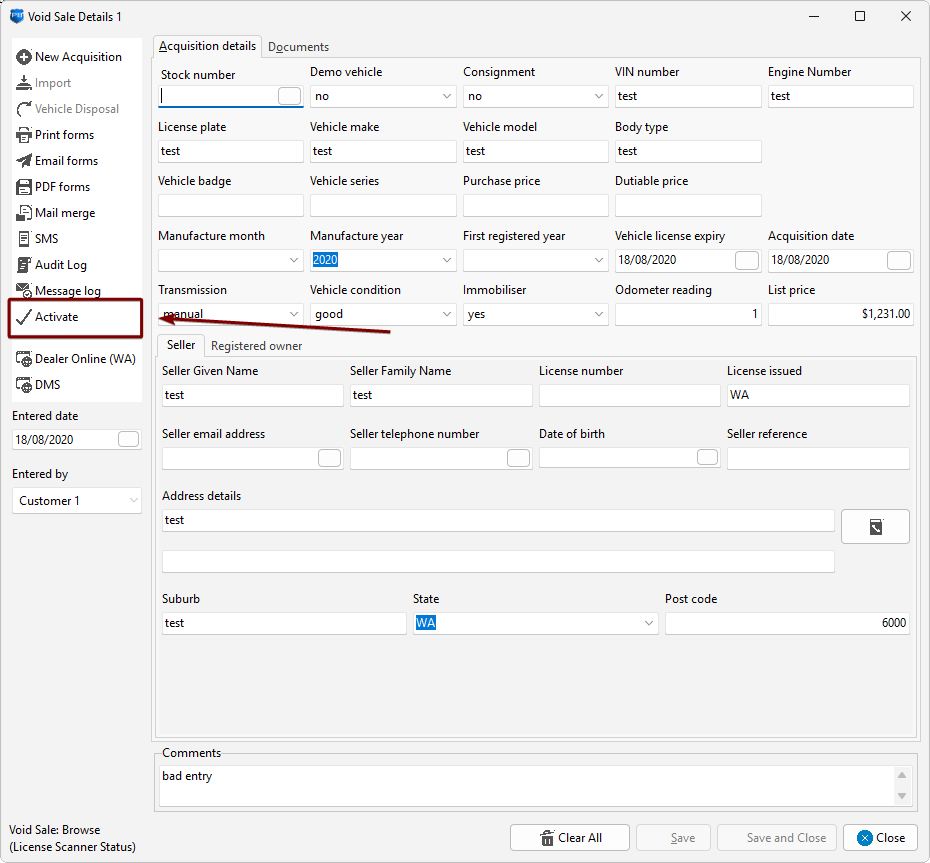
You can access the AcquisitionsTest Drives page by clicking the AcquisitionsTest Drives button in the top toolbar, or the AcquisitionsTest Drives button in the left-side navigation menu. You can also view Acquisitions and Disposals together with the "Police Book" button.
Creating a new AcquisitionTest Drive entry
Keyboard shortcut: Alt+N
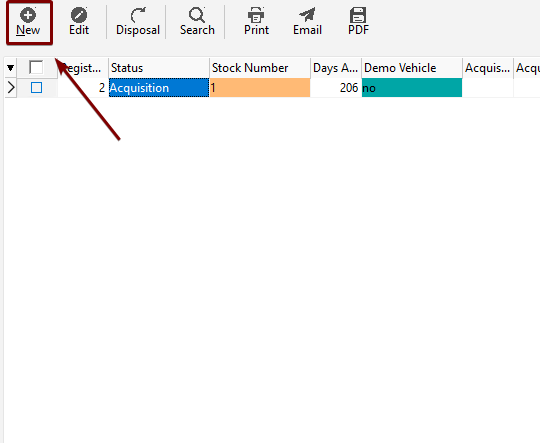
You can create a new AcquisitionTest Drive entry by clicking "New" in the AcquisitionTest Drive toolbar, or by right-clicking and clicking the "New" Menu Item.
| Toolbar | Right-click |
 |
 |
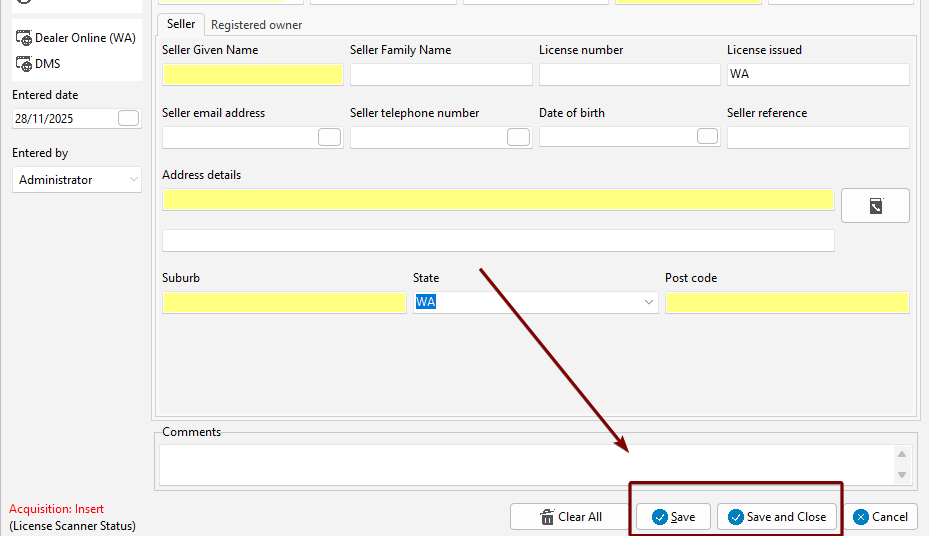
You will get a blank form to fill in data. Yellow fields are mandatory, white fields are optional. For explanations of the fields, please see the Glossary.
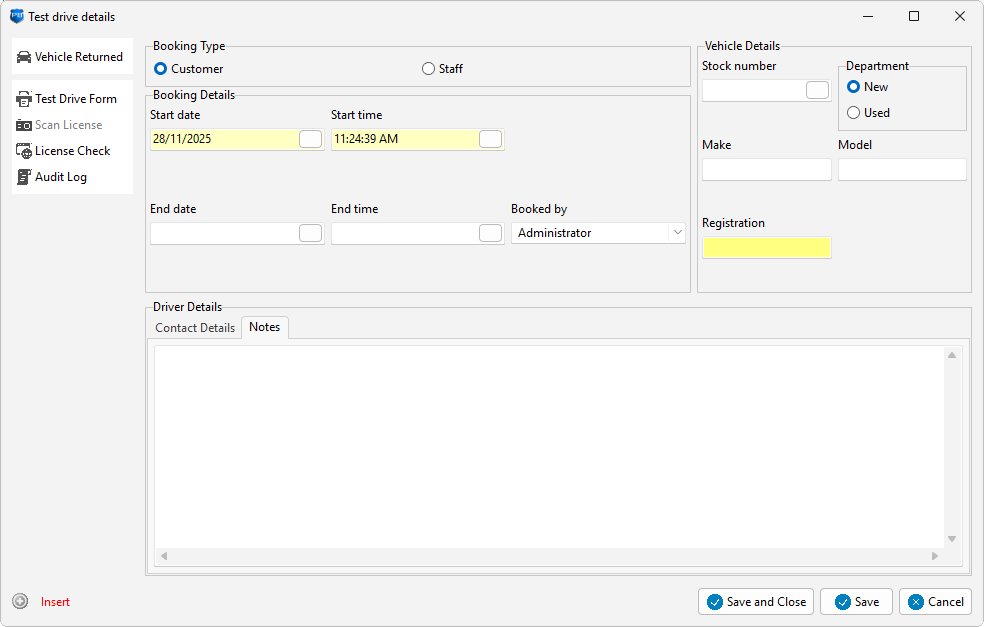
You can save with the two buttons below:
Editing an existing AcquisitionTest Drive entry
You can edit an existing acquisitiontest drive entry by selecting the acquisitiontest drive you want to Edit, and click "Edit" in the toolbar, or by right-clicking the acquisitiontest drive and clicking the "Edit" menu item.
You can then change whatever you like from there.
Voiding an Acquisition
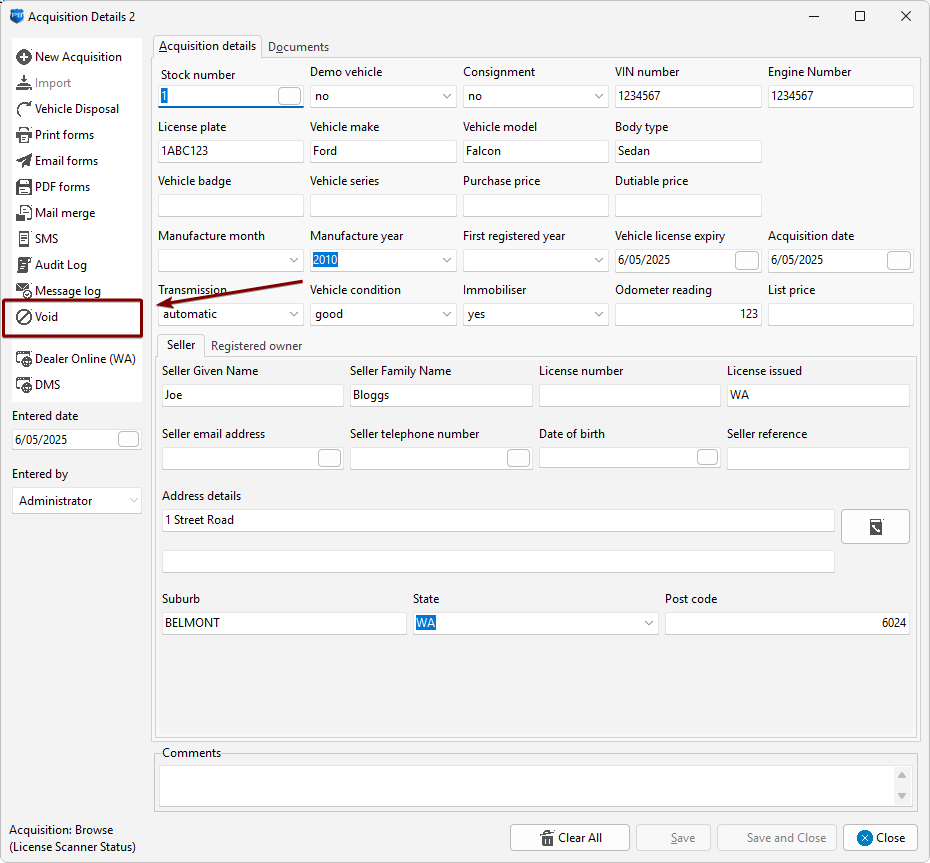
If the sale has fallen through, or if you put it in the wrong company, you can Void an acquisition. You can void an acquisition by clicking "Edit" and then clicking "Void" in the form-popup on the left-side. You will not be able to modify the voided entry unless you activate it again.
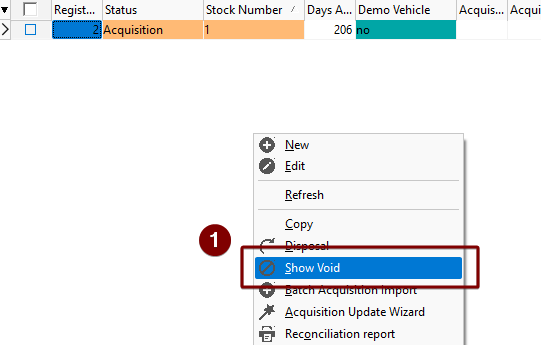
By default, this will hide the Acquisition in the table. You can right click the table and click "Show Void" in order to see voided Acquistions.
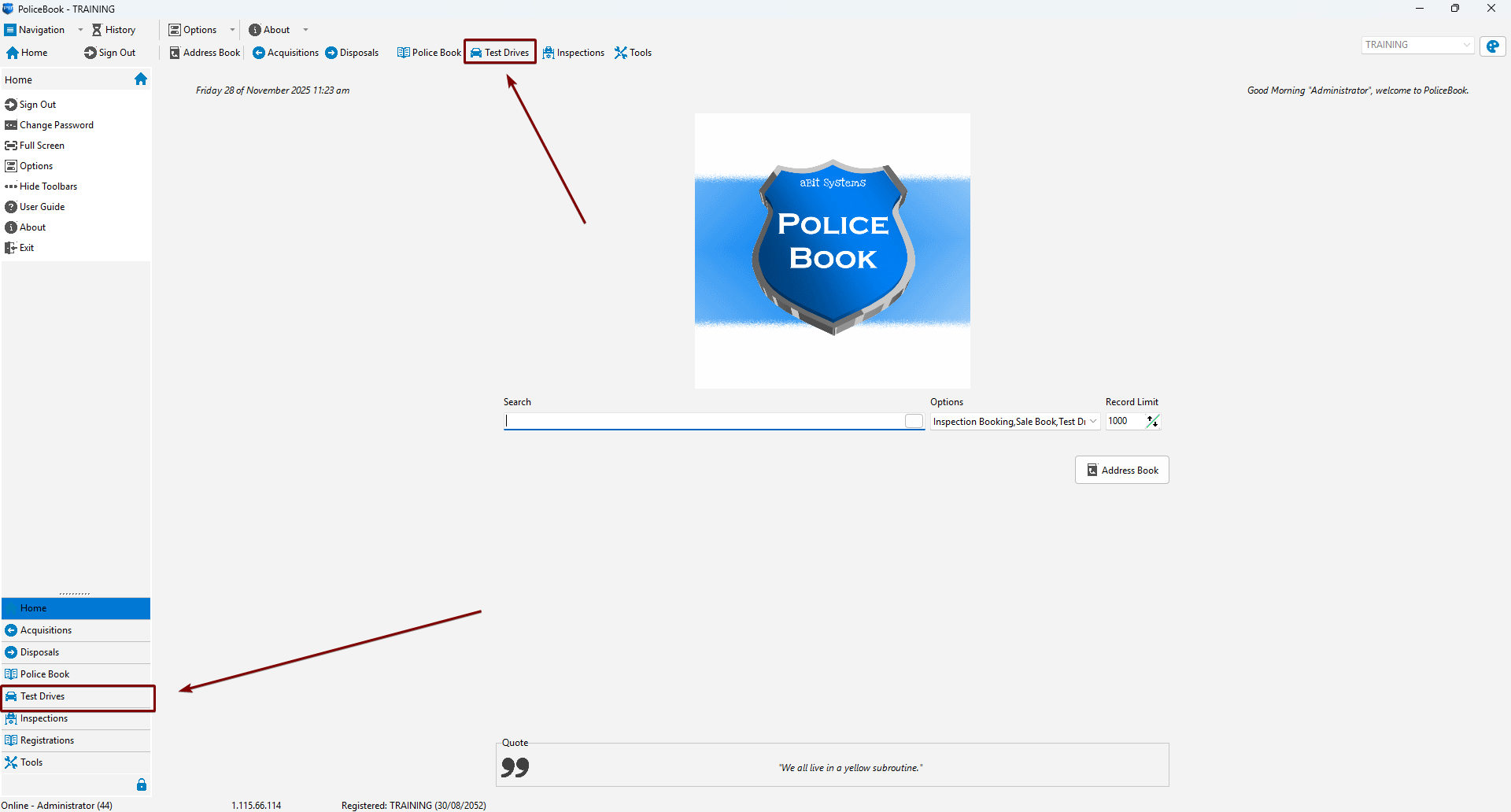
You can activate a voided entry by clicking "Activate" in the form pop-up window.