Starting and Logging into Service Scheduler
Starting Service Scheduler
To start Service Scheduler, you have the following options:
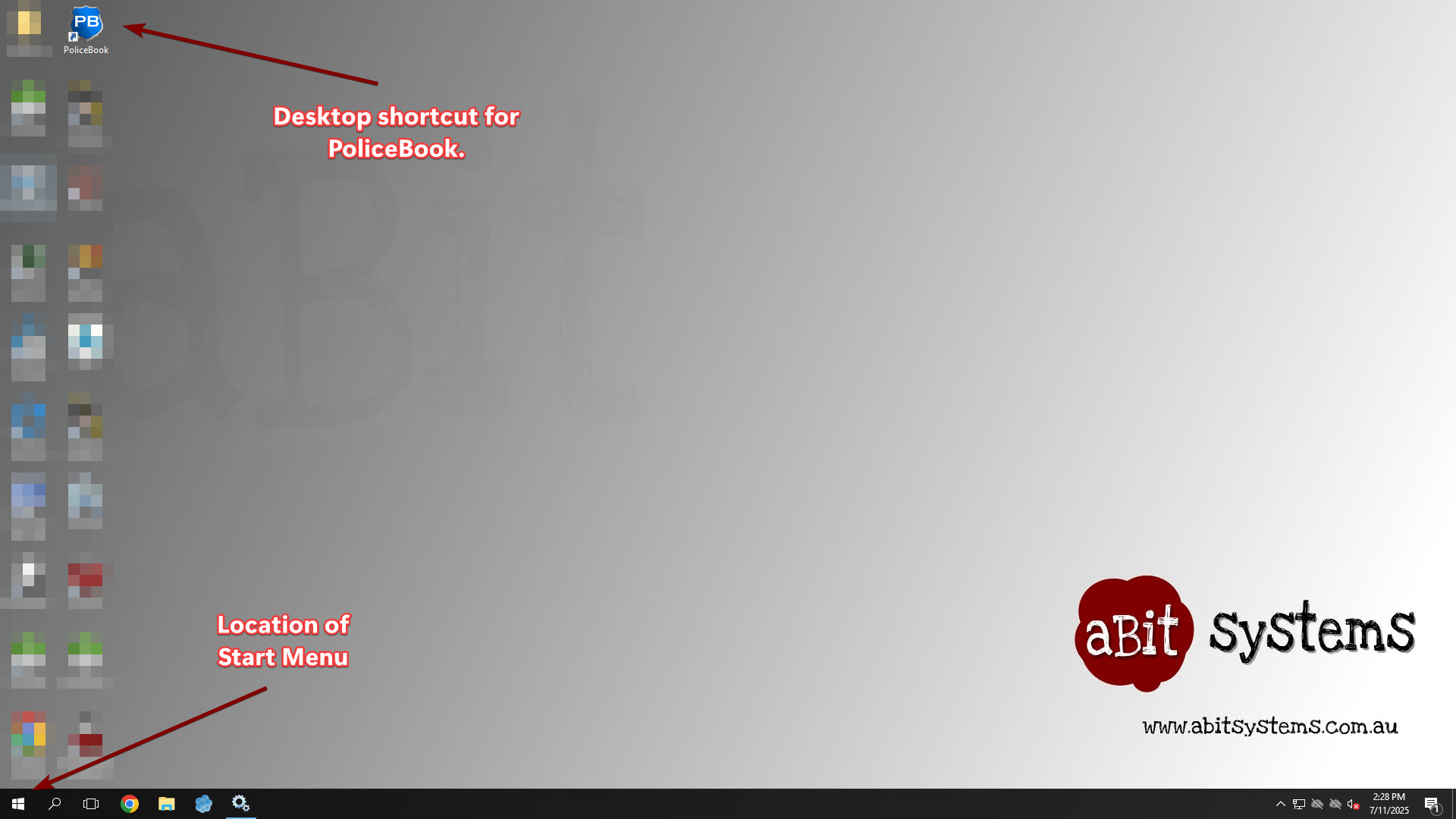
1. Use the provided desktop shortcut on your computer to start Service Scheduler.
2. Go into the Start Menu and find the Service Scheduler program under the "S" section.
3. Search "Service Scheduler" in the Search Box.
Logging into Service Scheduler
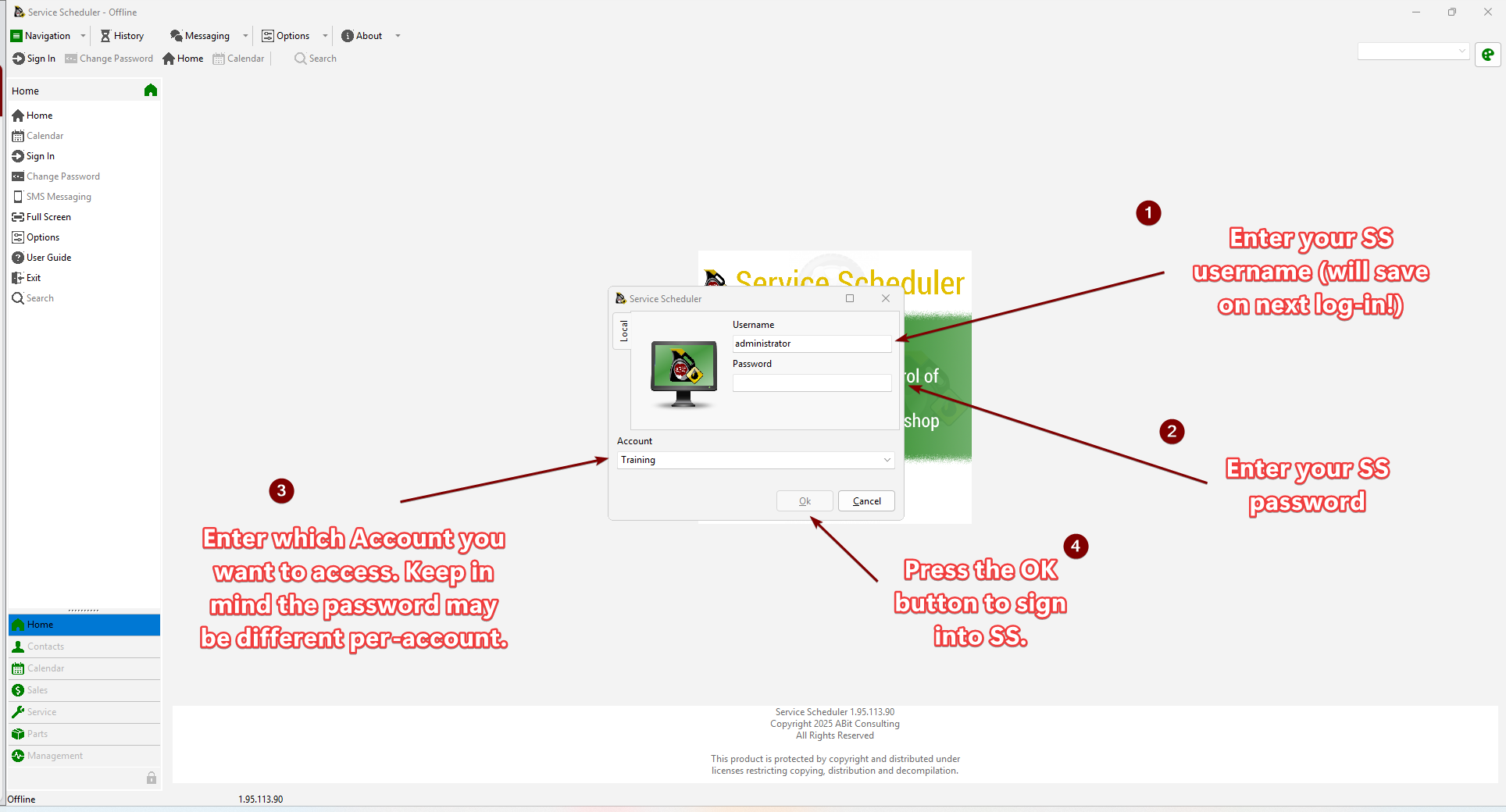
When you start Service Scheduler, you will be shown a pop-up window to log into the application.
Your Service Scheduler username and password is provided by your IT support. The account section will only appear if you are a part of multiple accounts for your Policebook site. Please pick the account that is best suited for your current use. You can switch between accounts once you have signed into the application.
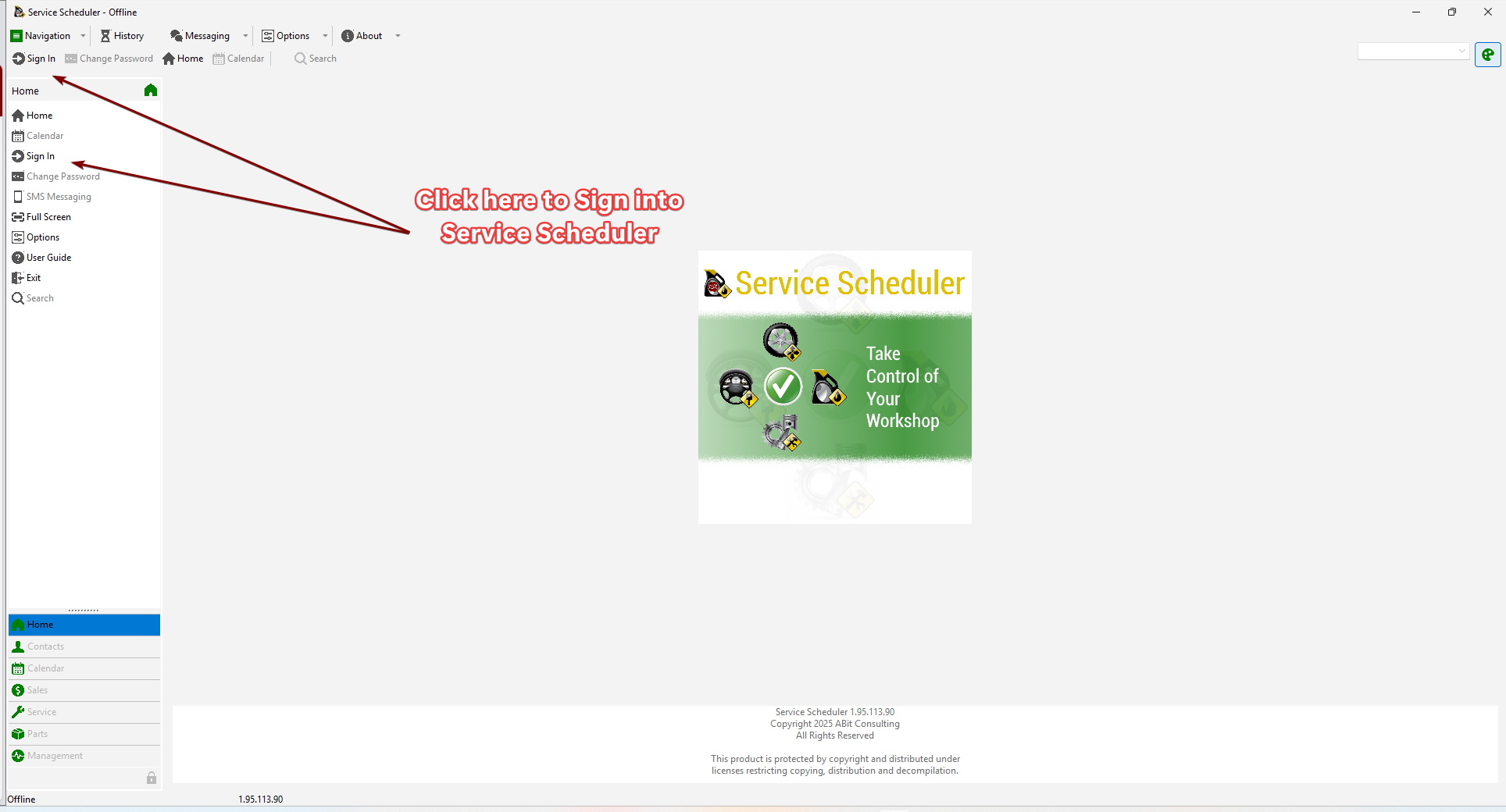
If you closed the pop-up, you can still sign in by pressing the 2 buttons at the top-left of the screen called "Sign In".
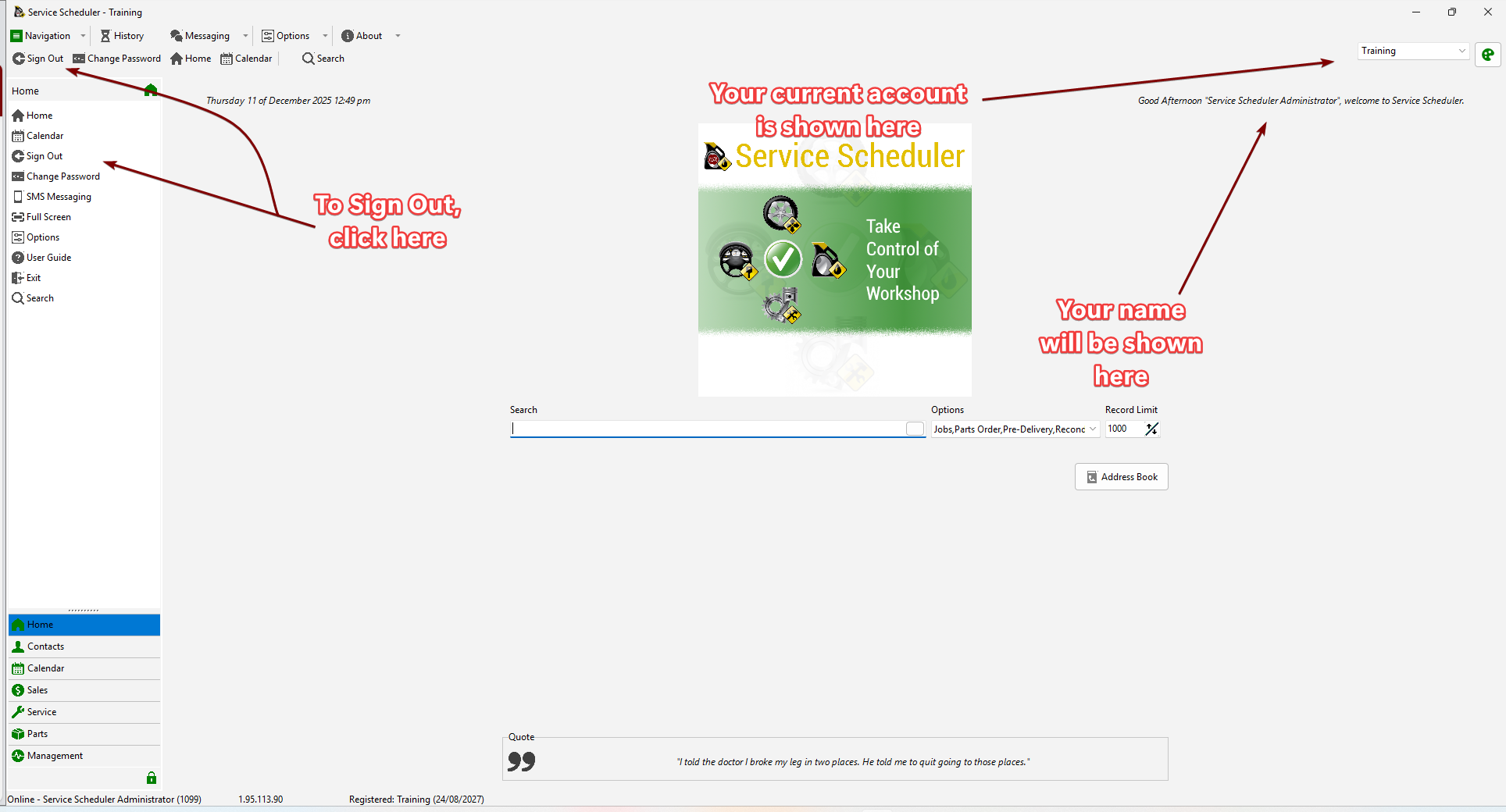
After a successful sign-in, you will be greeted by the front page of Service Scheduler. You will be able to see the current account at the top-right corner of the application, with a greeting message below showing who is signed into the application currently.
To sign out, you can go to the left sidebar or the top bar.