Client installation
The User setup does not require Administrative rights to install, but means only the user that installed the program can use it. There is a System setup available, but requires Administrative rights to install. You will be able to find these options on your Service Scheduler software home page. The User setup is the recommended version.
Download client
The client is available on the from the running server instance of service scheduler. (eg http://servsched:8090) The default Server Port: 8090 however this could be changed during installation.

| Client - User Setup | This will install the application in the user current profile. Admin rights are not require |
| Client - User Setup (System Wide) | This will install a stub in the program files folder and a desktop icon for all users. This will then install the application in users profile. This is helpful for workstations used by multiple users |
| Client - System Setup | This will install in Program files for all users. Requires admin rights. |
Launch client download
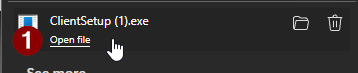
Once the download is complete click open file
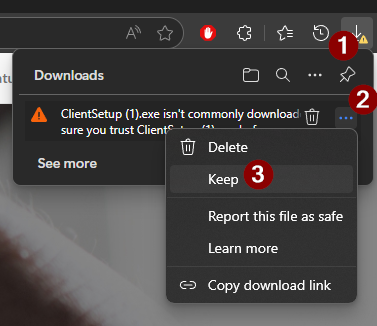
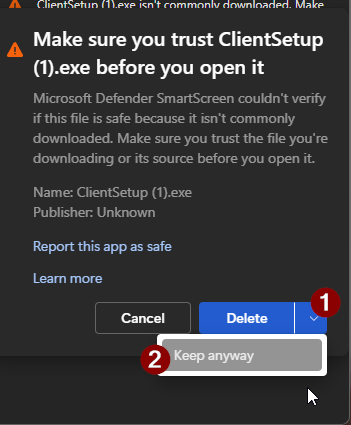
Some browsers may prompt about trusting the file. Select the 3 dots "..." and press keep
 |
|
Client Installation
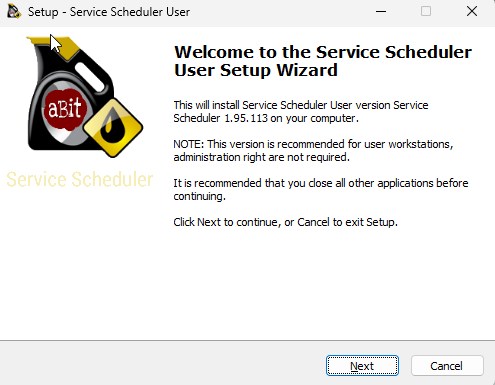
Press Next until installation is finished, not options need to be changed.
Client configuration
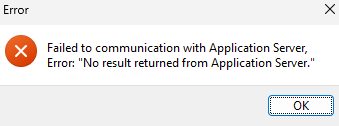
For many sites service scheduler will work immediately after installation however if a connection error occurs the server address will need to be entered manually.
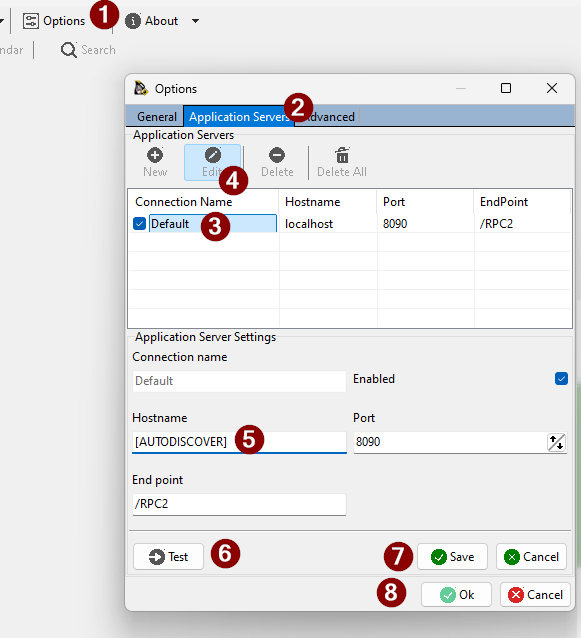
Select Options -> Application Server and adjust the [AUTODISCOVER] value to the server name or ip address of the Service Scheduler server.
If a URL was provided for installation (eg http://172.16.1.10:8090) the address would 172.16.1.10.
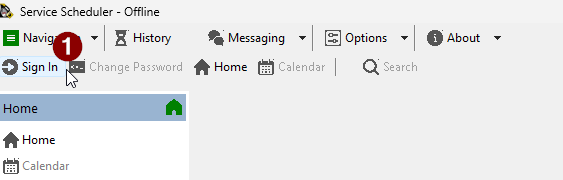
Press Sign in again